
Appearance
Compatibility
Scenery lets you build once and deploy to many platforms – but not every feature works everywhere. A small compatibility indicator appears throughout the editor next to features, contexts, and settings, telling you at a glance where each one is supported.
Reading the indicator
Tap a compatibility indicator to see per-platform support across iPhone & iPad, Mac, Apple Vision Pro, and the web (WebXR). Each platform shows one of three states:
- Fully compatible – works as intended.
- Partially compatible – available with limits. Often this means preview only: on Mac, for instance, you can preview content in the simulator but not experience it at full scale, because a Mac has no depth sensing or full world tracking.
- Not compatible – not available on that platform.
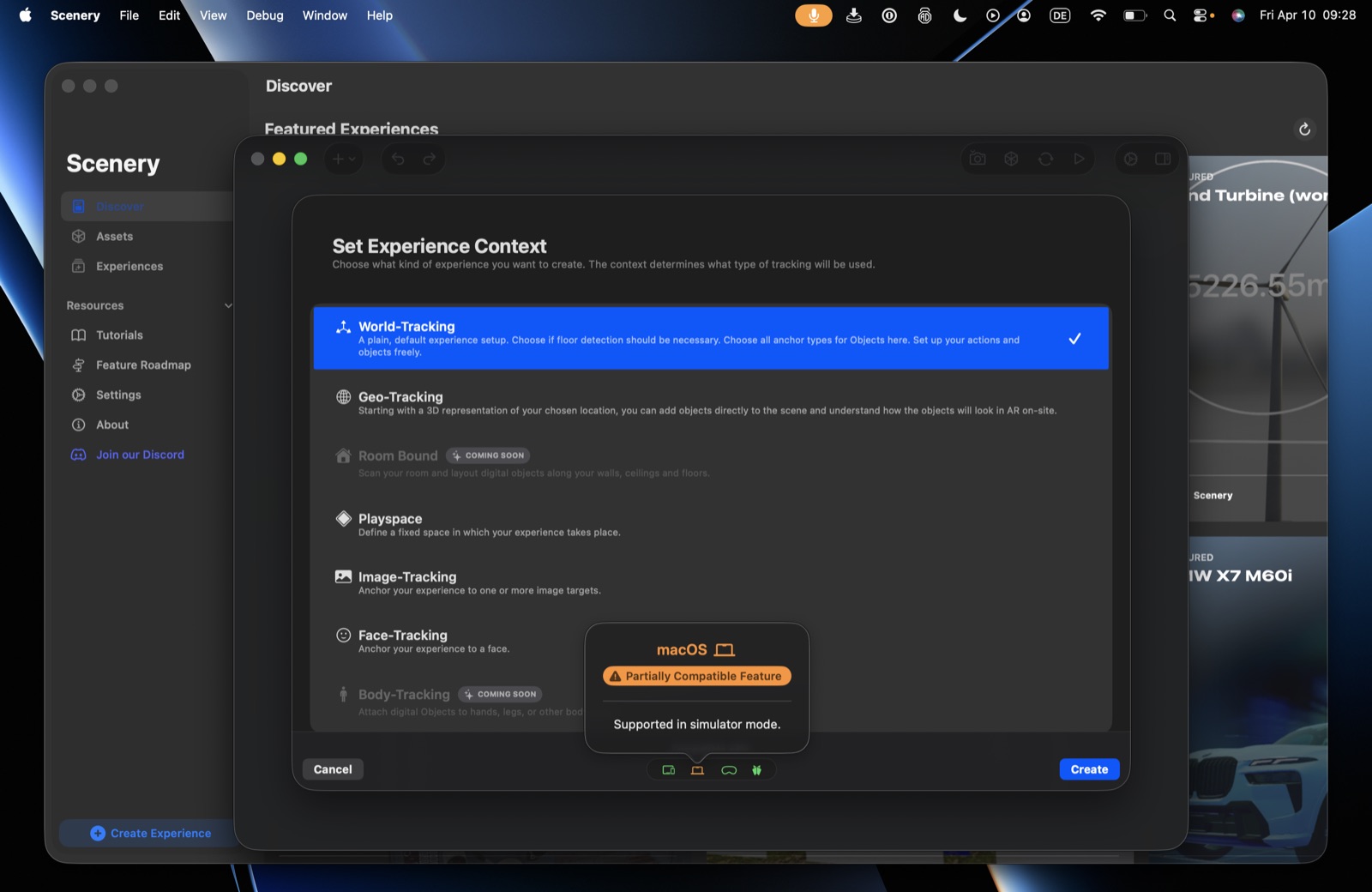 A compatibility popover: Partially Compatible on Mac, supported in simulator mode.
Because you choose a tracking context first, the compatibility shown depends partly on that choice – the context picker updates its indicator as you select.
Tracking-context support
How each context is supported, per platform:
| Context | iPhone & iPad | Mac | Apple Vision Pro | Web (WebXR) |
|---|---|---|---|---|
| World-Tracking | Full | Preview (simulator) | Full | Full |
| Geo-Tracking | Full | Preview (simulator) | Preview (diorama) | Coming soon |
| Image-Tracking | Full | Preview (simulator) | Partial | Partial (needs an experimental Chrome flag) |
| Face-Tracking | Full | Preview (simulator) | Not supported | Experimental |
| Playspace | Full | Preview (simulator) | Full | Coming soon |
| Room Bound | Coming soon | Coming soon | Coming soon | Coming soon |
| Body-Tracking | Coming soon | Coming soon | Coming soon | Coming soon |
For exactly what carries over to the browser, see WebXR.
Authoring vs. viewing
Experiences are currently built on Mac and iPad (where the Create button appears). iPhone and Apple Vision Pro are primarily for viewing experiences.