
Appearance
Animations & Appearance
Actions that move, animate, and change how objects look. (For how actions are added and ordered, see Actions.)
Animate Object
Plays an animation on an object. Selecting it opens a dedicated view: a ghost outline shows the object's start state, and you drag the model (or type values) to define the end state.
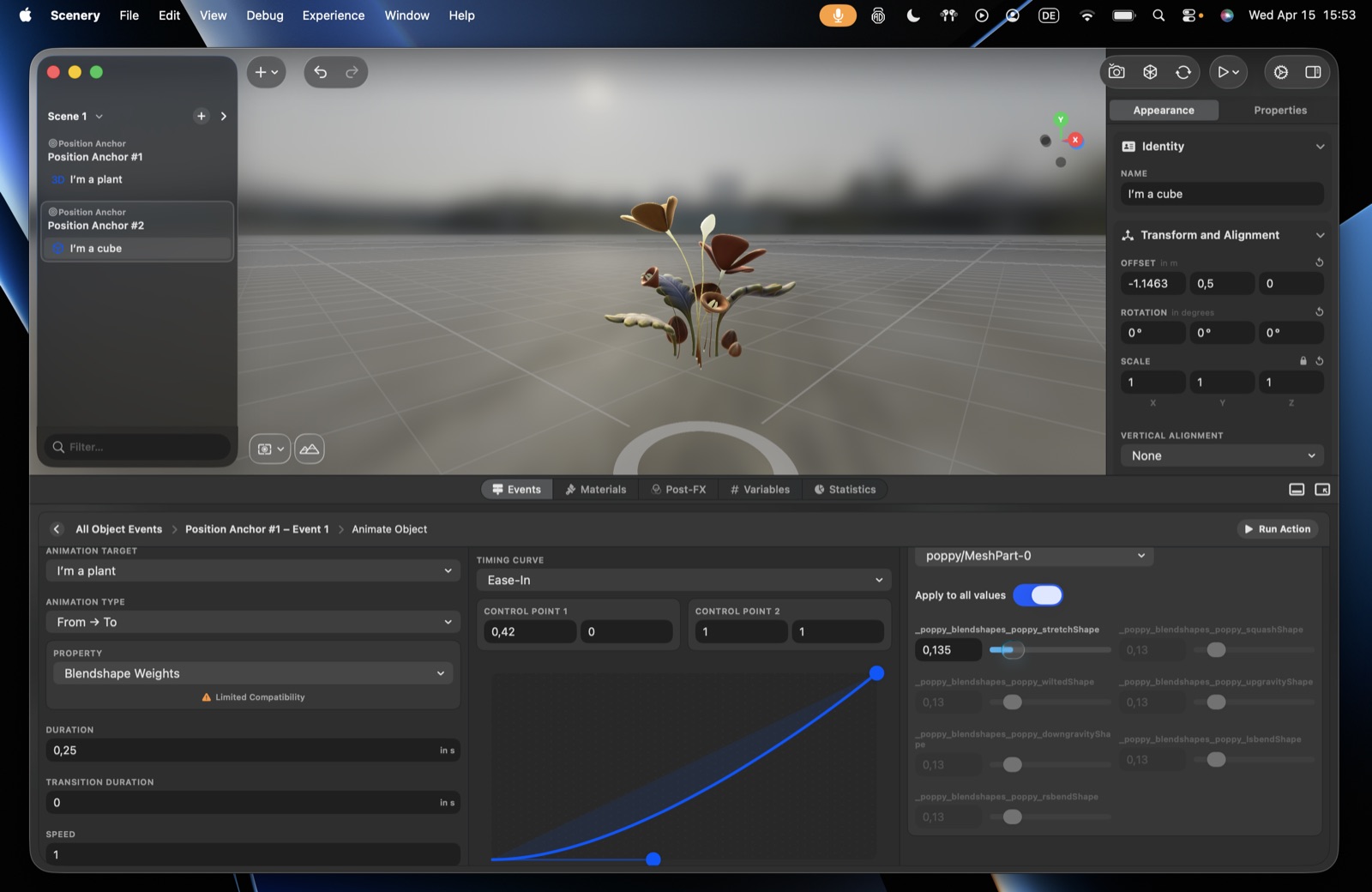
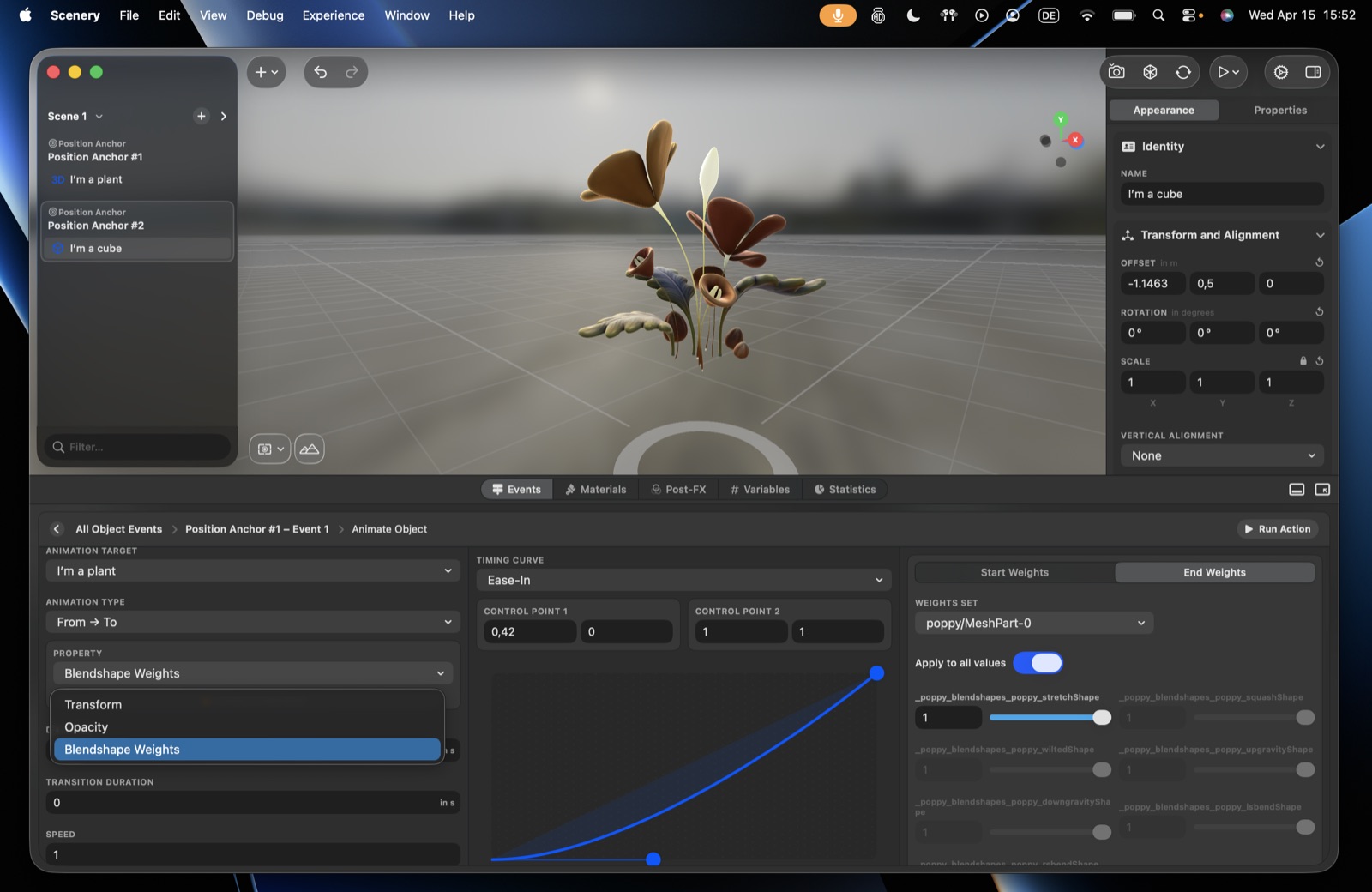 The Animate Object editor – animation type, timing curve, and per-property controls.
Animation type – pick how the object animates:
- From / To – animate between an explicit start and end state. You can animate the transform (position, rotation, scale), opacity, and blendshape weights (on a model that has them – set start weights and end weights, together or individually via apply to all).
- From / By – animate by a relative amount from wherever the object currently is, rather than to a fixed end state. (Useful when the start isn't known in advance – e.g. "rotate by 90°" regardless of current rotation.)
- Model animation – play an animation baked into the 3D model. A model carries a single baked timeline, so to use several animations, bake them into one and trim to a start/end timestamp (plus an optional delay) per action.
- Spin – continuous rotation around an axis.
- Orbit – orbit around an axis, with control over axes, number of revolutions, direction (clockwise/counter), and orient to path (face the direction of travel).
- Presets – ready-made motions (pop, blink, bounce, flip, float, jiggle, pulse, spin), each with a motion style: basic, playful, or wild.
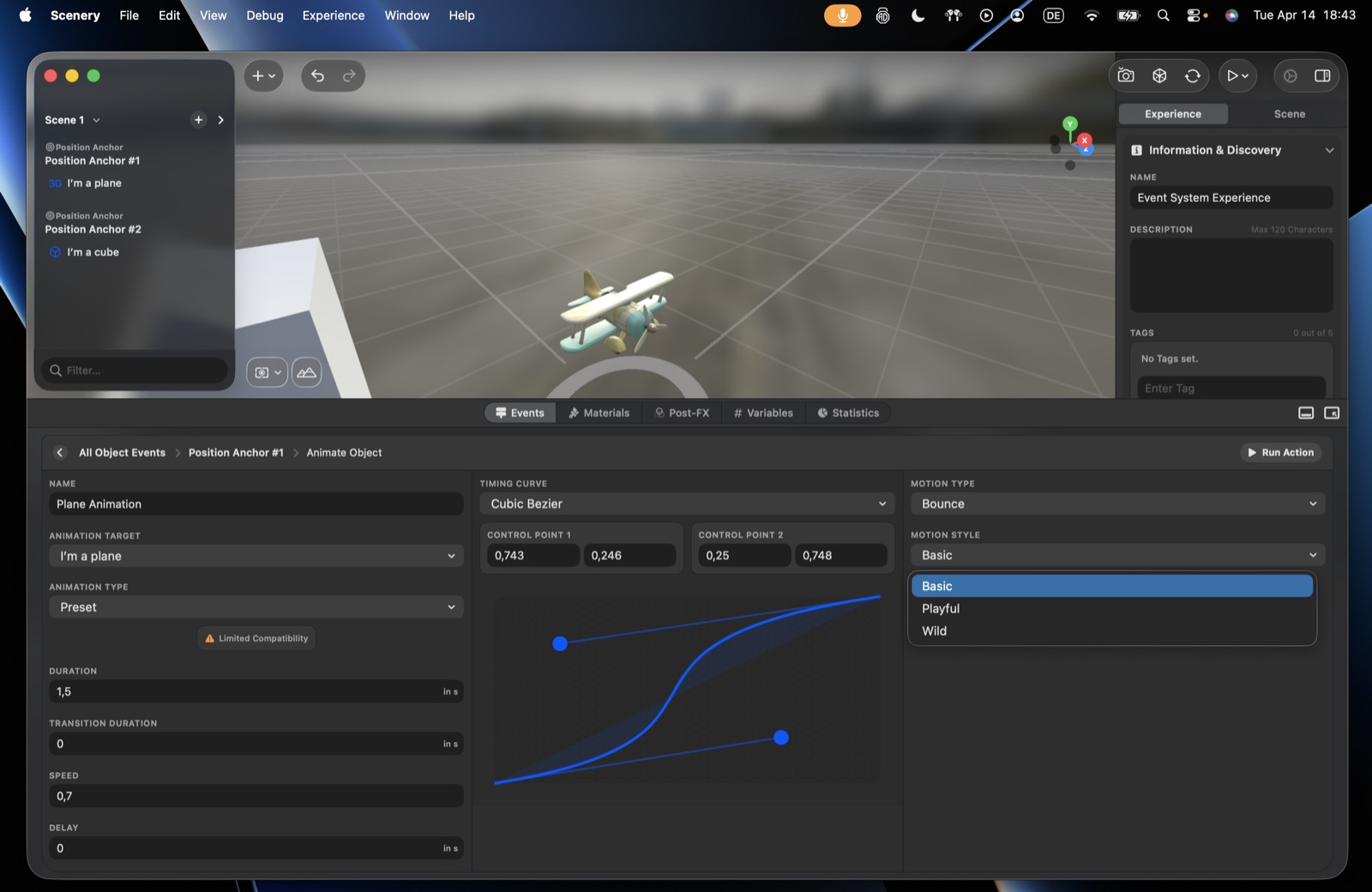 Preset motions, with Basic / Playful / Wild styles.
Common options (where applicable):
- Duration – how long the animation runs, in seconds.
- Transition duration – eases the change in speed.
- Delay – wait before the animation starts.
- Repeat mode – No repeat, a fixed Count, Forever, Auto-reverse (play then reverse), or Cumulative (each repeat continues from where the last ended rather than restarting).
- Additive – blend this animation on top of other concurrent animations instead of overriding them.
- Timing curve – Linear, Ease In, Ease Out, Ease In Out, or a custom Cubic Bézier (drag the control points) to make motion feel natural rather than mechanical.
- Reference space – the frame the motion is interpreted in: the object's own space (default), World (the scene), or Point of View (relative to the camera). It matters because "move up" or "rotate" mean different things depending on the frame.
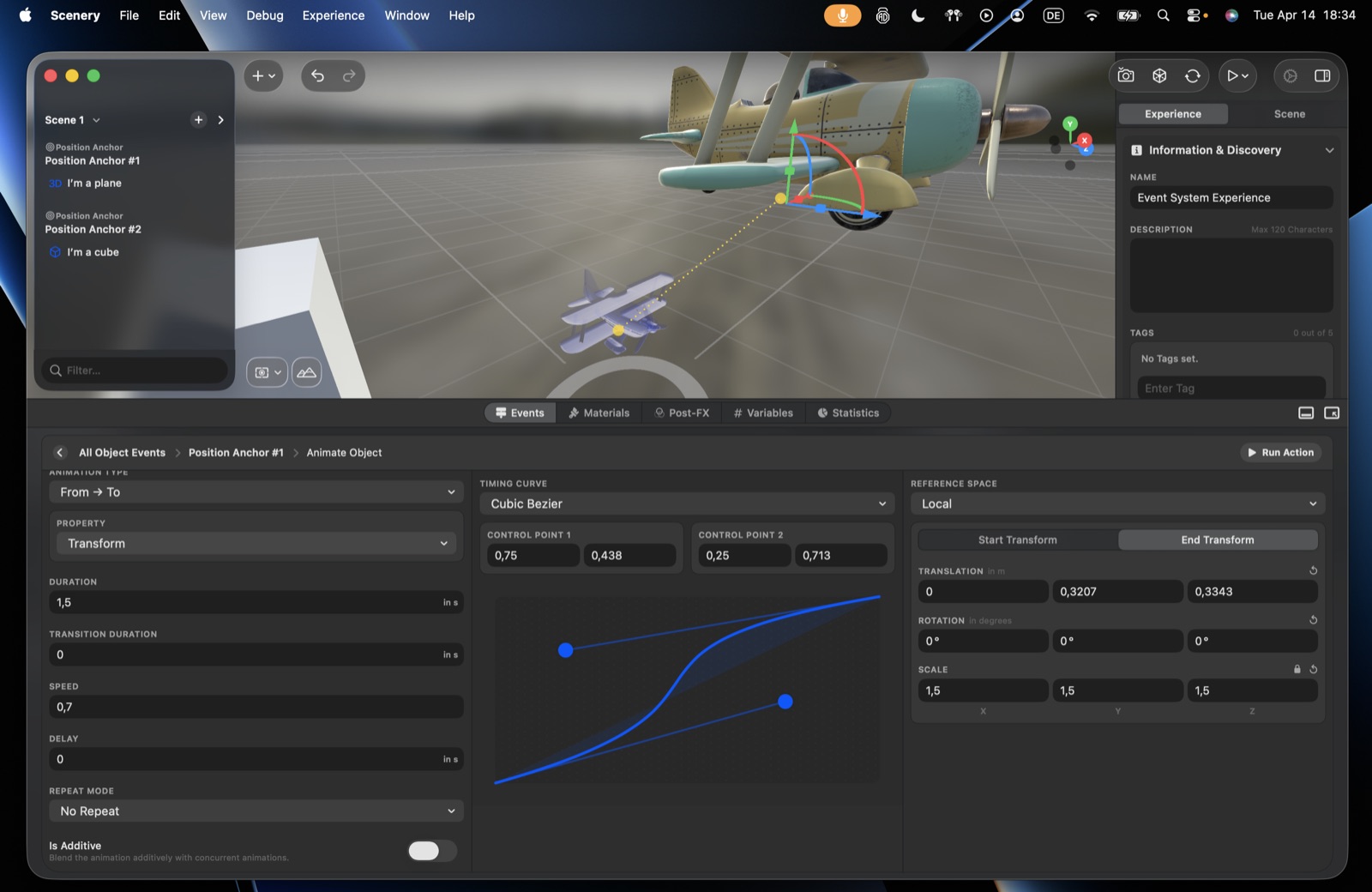 The custom Cubic Bézier timing curve.
Preview a single action
Use the Run action button to preview just this animation, without entering full preview mode – much faster to iterate.
Modify Transform
Changes an object's position, rotation, or scale when the action fires, without a full animation. Choose a mode (To or By), a target object, optional transition smoothing, and a reference space (local, world, or point of view).
Use Modify Transform for a direct, one-step change; reach for Animate Object when you want a timed animation with a duration, repeat, and timing curve.
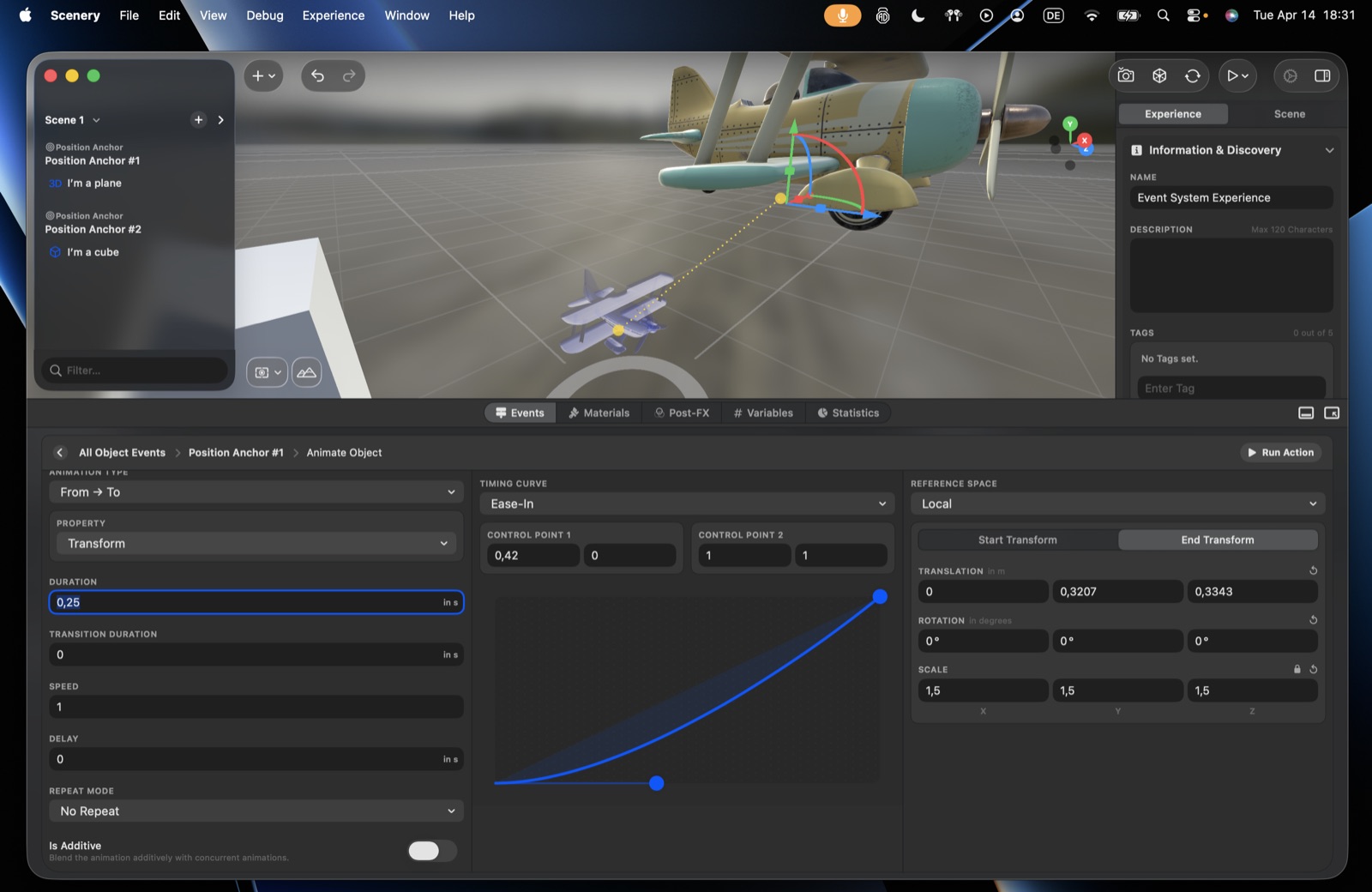 The Modify Transform action.
Update Blendshape Weights
Sets the blendshape weights (morph targets / shape keys) on a model that has them – the controls that morph a mesh, like facial expressions or a blooming flower. Pick the target, the weight set (if the model has more than one), and either set all weights together or adjust them individually (the apply to all toggle).
This sets weights directly; to animate them over time, use Animate Object with the blendshape-weights property instead.
 Update Blendshape Weights – per-target sliders.
Play/Pause Animations
Toggles an object's animations – on/off, resume or pause. It affects animations you set up in Scenery, and can also affect a model's built-in (model-included) animations.
Built-in animations autoplay by default
A model's baked-in animations play automatically when it's added. To drive one with this action instead, first turn off Autoplay model animations in that model's Appearance properties.
Stop Animations
Completely stops and removes an object's animations (use it when you don't intend to resume them), with an optional transition duration for how quickly they stop.
Burst Particles
Emits a one-off burst from a model's particle system. The model must actually contain particles – particle systems are created in Reality Composer Pro and imported as USDZ. (In the asset library you can filter for contains particles; several particle assets ship with paid plans.)
from-by = a relative delta vs from-to's absolute end; cumulative repeat accumulates across loops; reference space = the object's own/local frame (default), World, or Point of View; the preset motion types and styles match the editor exactly.