
Appearance
Events & Triggers
Events are how an experience becomes interactive: a trigger decides when something happens, and one or more actions decide what happens. This page covers events and their triggers – for the actions themselves, see Actions.
You'll find events in the Events panel at the bottom of the editor (drag it upward for more room as it grows). Events come in two kinds, split down the middle of the panel:
- Scene events – apply to the whole scene.
- Object events – belong to a specific object.
Keep your events tidy
Deleting an object doesn't remove events that referenced it – they're left behind as "unlinked." After deleting content, glance through your events to keep things clean.
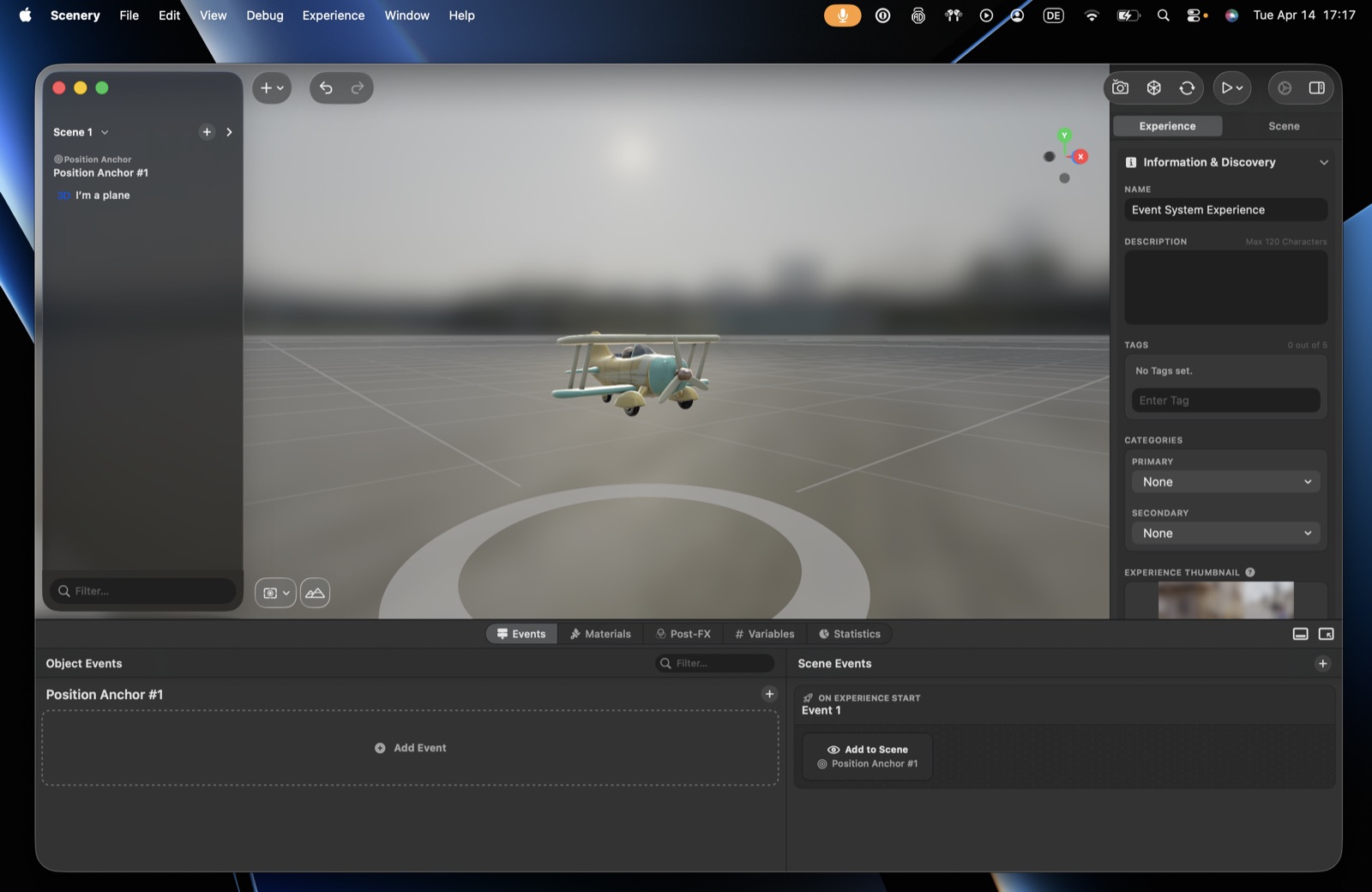 The Events panel – Object Events and Scene Events.
Scene events
Scene-wide. When you add your first content, an Add to scene event on On Experience Start is created for you, so that content appears when the experience starts. (Rename events to describe what they do – it keeps complex scenes readable.)
Scene triggers
- On Experience Start – fires once when the experience starts. The one you'll use most.
- On Screen Tap – fires when the user taps anywhere on the screen (not tied to an object), with an optional screen-area filter.
- On Schedule – fires on a timer. Either an interval (every N seconds, repeating a set number of times or indefinitely) or a specific date & time (with a choice of what to do if that time has already passed – skip it, or fire immediately).
- Custom – fired programmatically; used with scripting.
- On Experience Load – fires earlier than On Experience Start: while the scene is being prepared and assets load, before playback begins. Use it for setup that should happen before the user sees anything.
- On Render – fires every frame, with an optional frame throttle (a minimum time between fires – higher values reduce processing at the cost of responsiveness).
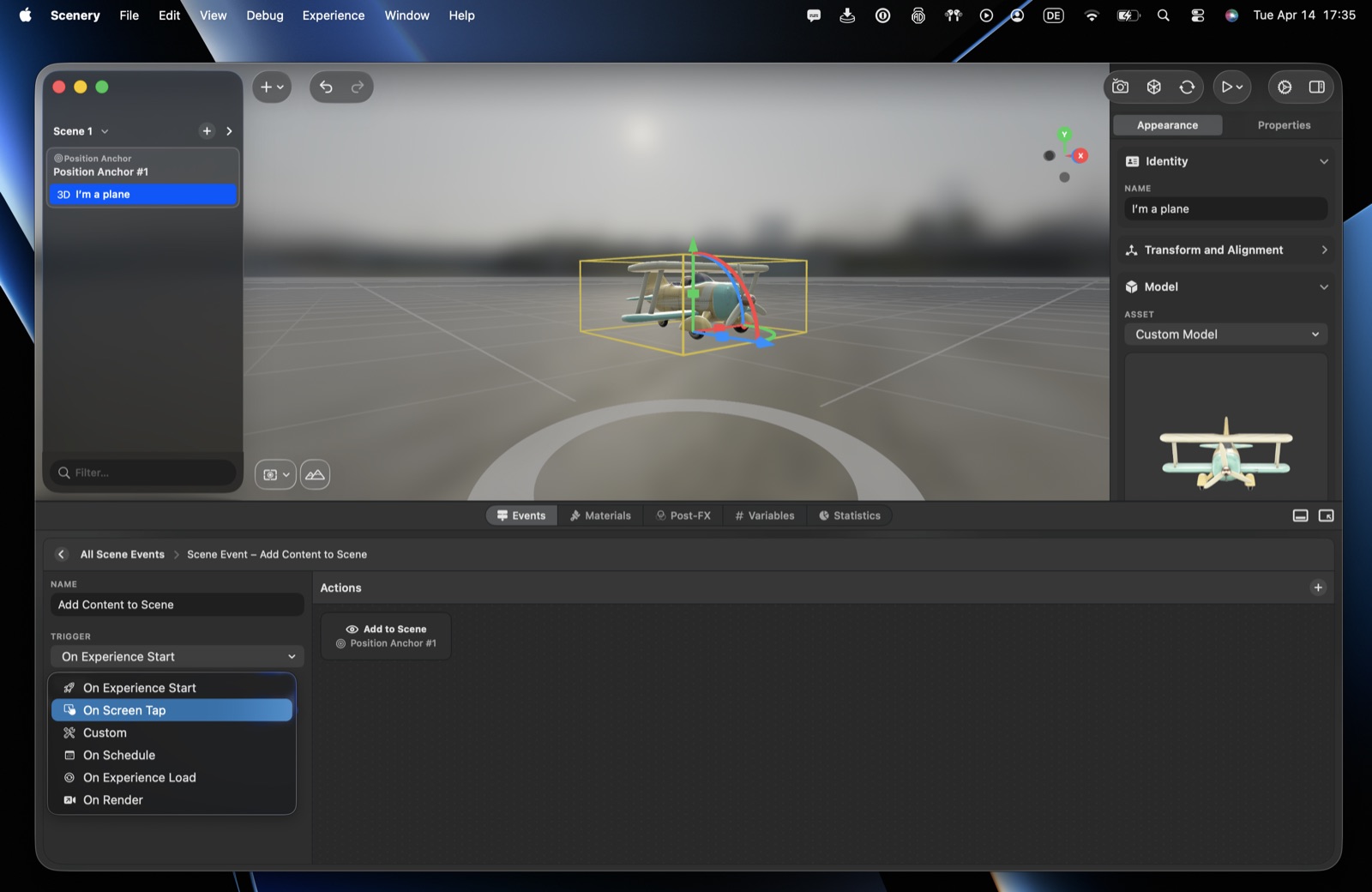 The Scene trigger picker.
On Experience Load vs. On Experience Start: Load runs during preparation (while assets load), Start runs when the experience actually begins playing. Schedule options are exactly an interval (seconds + repeat count, indefinite supported) or a date & time (with skip-if-passed / fire-immediately fallback).
Scripting triggers
On Experience Load, On Render, and Custom are part of the scripting toolset. Scripting is a beta feature available to selected accounts – once it's enabled on your account these triggers appear automatically. See Developer actions for how to request access.
Object events
Object events belong to a specific object and are grouped under it in the panel. Nothing is created automatically – it's entirely up to you. Add one with the + (or the Add event area), choose the target (an object can contain several models or media), then pick a trigger.
Object triggers
- On Will Appear – just before the object appears.
- On Did Appear – right after it appears in the scene.
- On Removal – when it's removed from the scene.
- On Tap Gesture – when the user taps this object specifically (not the screen).
- On Camera Collision – when the camera passes through the object. Great for walk-through and collection mechanics.
- On Object Collision – when this object collides with another object you choose; fires on collision began or ended. Both objects need physics enabled – physics is what creates the collider that makes collisions detectable.
- Distance Field – based on the distance (in metres) between the object and the camera, or another object you choose; fires on enter or exit of that distance. Useful for proximity effects like fading ambient audio in and out.
- Look Direction – based on looking: by default, the user looking at the object (it can also be one object facing another). Fires on look at or look away, after a minimum duration.
- Video Playback – appears only for video elements. Fires when playback begins, ends, or reaches a timestamp you pick (with a frame-accurate scrubber to choose the exact moment). Great for syncing content to a video's timeline – e.g. spawn an object at 0:05, or branch a story at a chosen point.
- UI Interaction – appears only for User Interface elements. Fires when the user interacts with a UI control (tap, toggle, value or text change).
- On Gesture – appears only for objects that have a gesture enabled (drag, rotate or resize). Where On Tap Gesture reacts to a tap, this reacts to the user actually moving the object, so you can respond to the manipulation itself. Pick the phase it fires on:
- Gesture Began – the moment the user grabs the object.
- While Moving – continuously, as the object is being moved. Use it for live updates that should follow the object.
- Gesture Ended – when the user lets go.
- Any – every phase. Note this fires on every frame of the movement, so prefer a specific phase unless that is what you want.
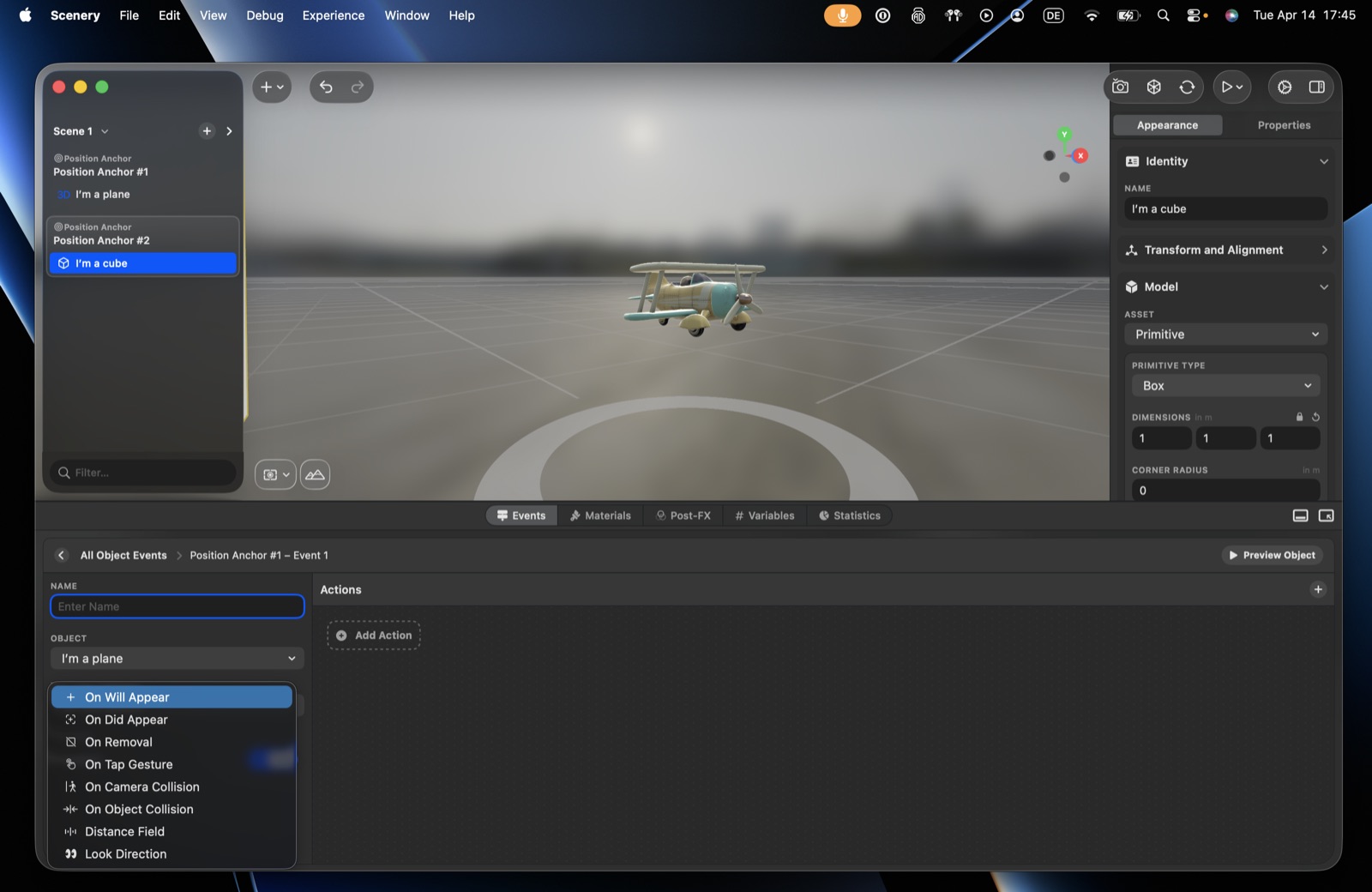 The Object trigger picker.
Event options
Every event offers:
- Name – for clarity in busy scenes.
- Target (object events) – which object / representation it applies to.
- Can repeat – whether it can fire more than once, or only once.
- Is enabled – turn the event on or off. Events can be enabled/disabled by other events and actions, which is how you build on/off cycles.
- SharePlay synchronization – whether the trigger also fires for other people in a shared experience. Usually leave this on.
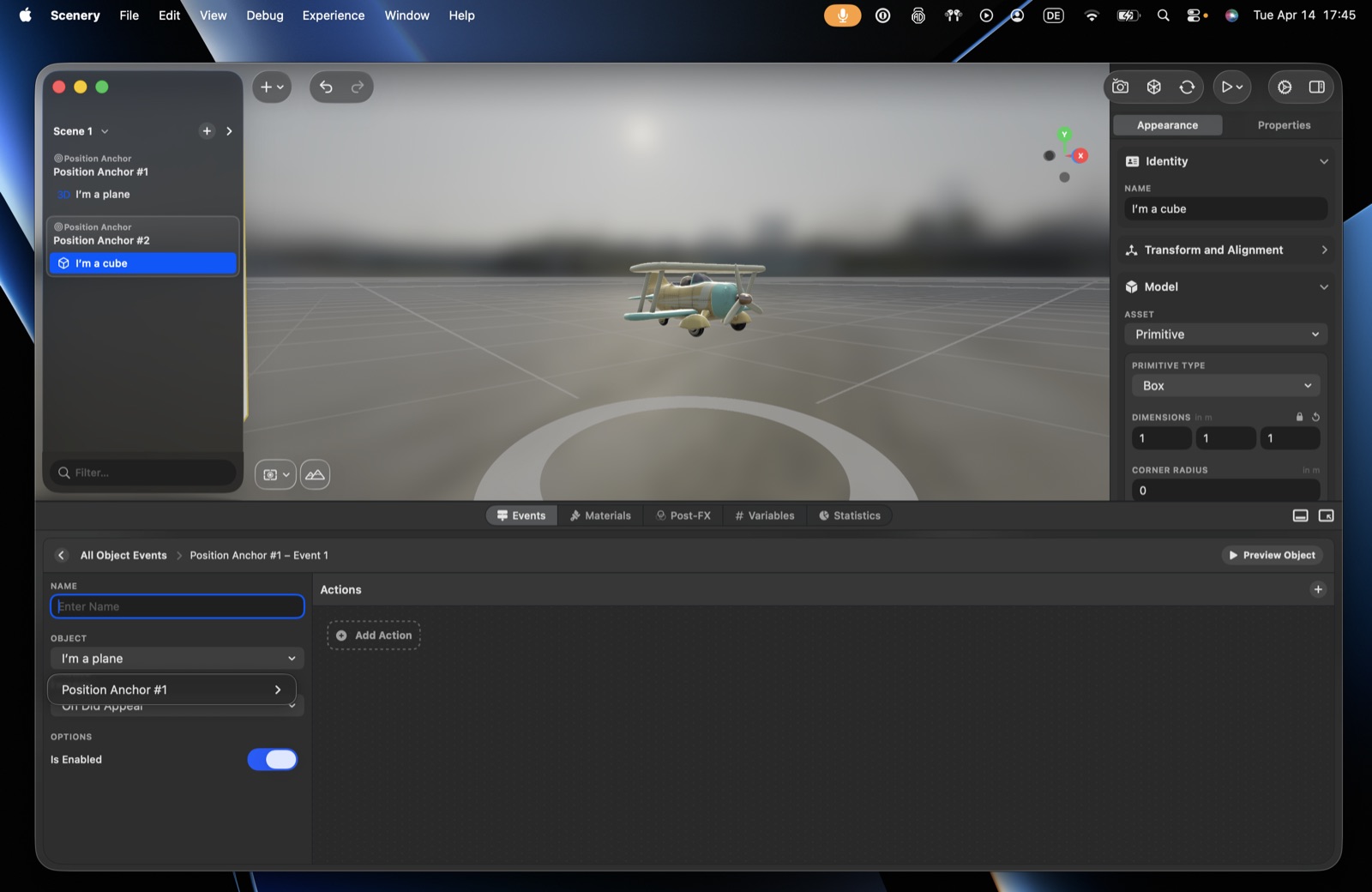 An event's options – Name, Object, and Is Enabled.
Build back-and-forth interactions
Because actions can toggle Is enabled on other events, you can make the same object alternate – e.g. tap to open (then disable "open" and enable "close"), tap again to close.
Triggers vs. actions
A trigger decides when; actions decide what happens. Add actions from the + on the right of an event, or right-click the action canvas for a quicker browsable list. By default, actions run sequentially (one after another); drag one onto another to form a group, whose actions run simultaneously. See Actions for the full set.