
Appearance
Asset Properties
Select an object and open its Properties tab to set how it behaves: visibility, guidance, audio & haptics, gestures, and physics. (Visual styling lives in Asset Appearances; how it attaches to the world is Anchors.)
General
- Hide by default – the object is added to the scene but starts hidden, to be revealed later by an action. Off by default (most content is meant to show on add). See Toggle Object.
- Discovery guidance – an on-screen arrow that points the user toward this object. None, Initial (shows until the user has seen the object, then stops), or Permanent (keeps pointing). Useful for guiding people through larger, location-based scenes, or directing attention to something that appears behind them.
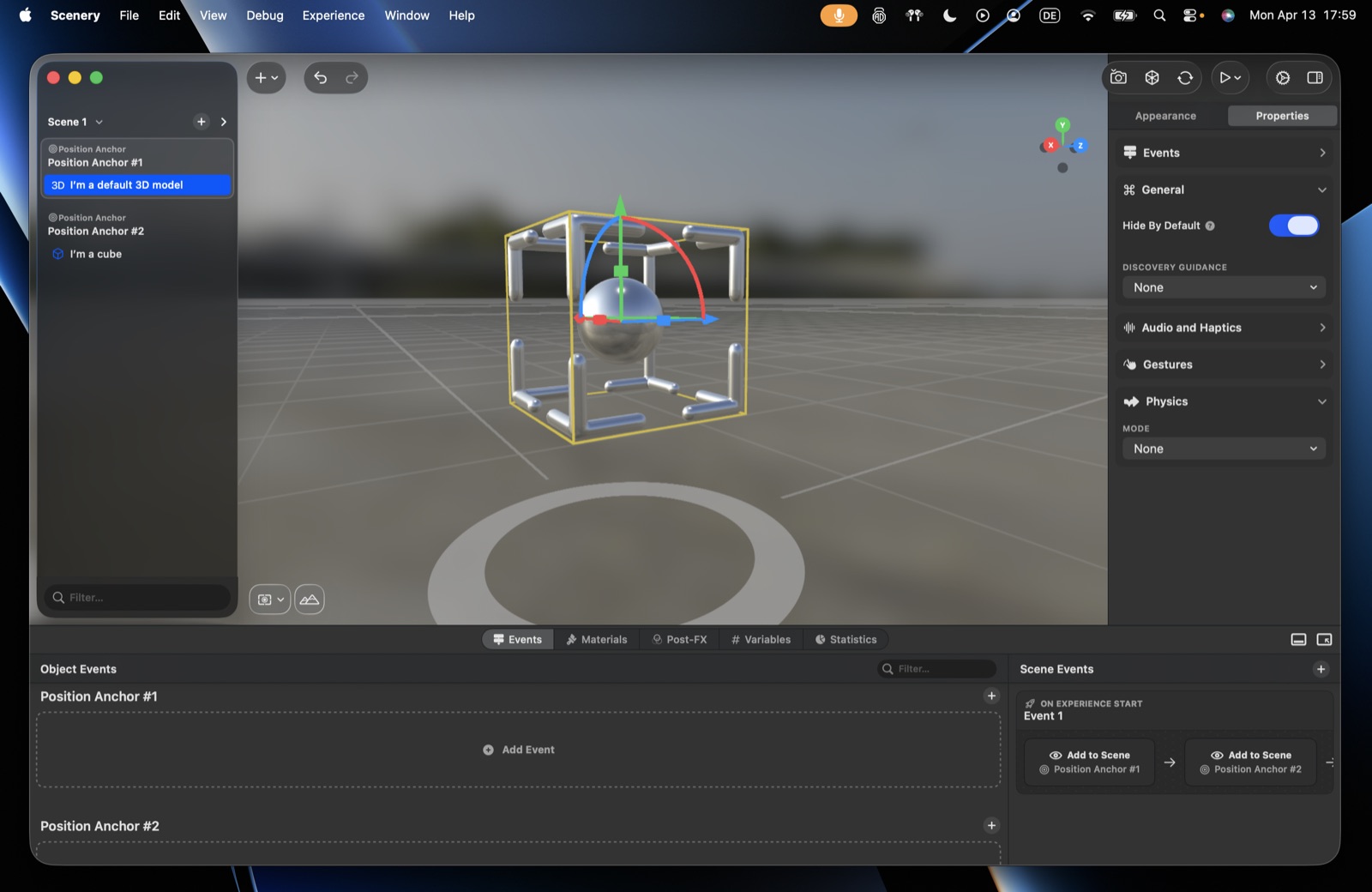 The General section of the Properties tab.
Audio & haptics
Attach a sound and a haptic to the object – best for sound effects tied to the object (for narration or background music, use the audio actions instead).
- Audio – the sound file, with a mode: Spatial (3D, positioned at the object – use a mono source so it spatializes well), Non-spatial (flat, no positioning), or Ambient (directional but with no distance falloff). Plus volume and loop. See Play Audio for how the modes differ.
- Haptics – attach an AHAP haptic file (created in external tooling, ideally alongside the sound) so interactions also have a tactile response.
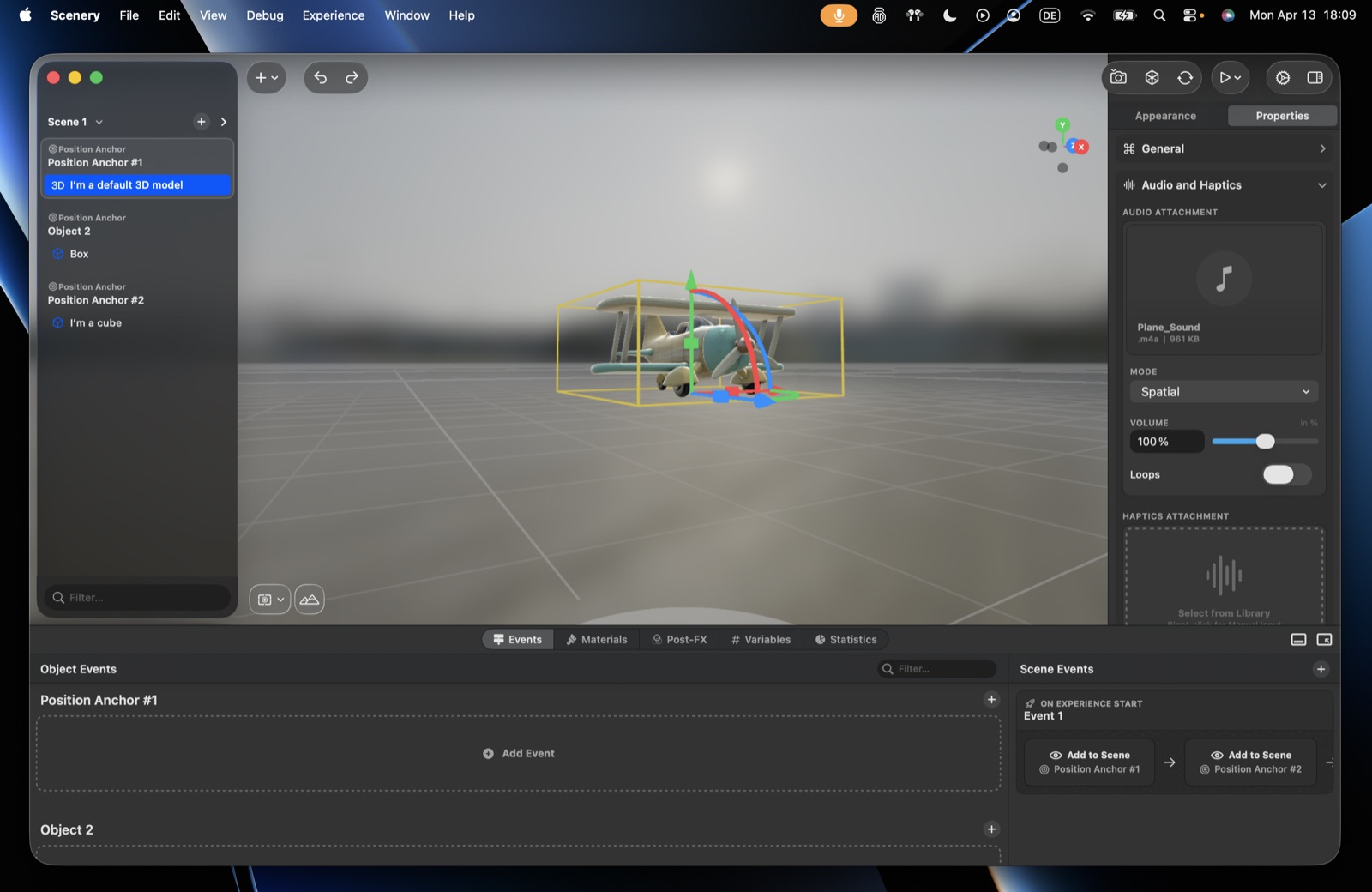 The Audio and Haptics section.
- Emission behavior (advanced) – fine control over how the object radiates sound: overall volume; the balance of direct vs. reverb level (less reverb sounds closer and more intimate, more sits it deeper in the room); directivity (the radiation pattern – equal in all directions by default, or focused more in one direction); and distance attenuation (how quickly the sound fades as the listener moves away, with a rolloff strength to set the rate).
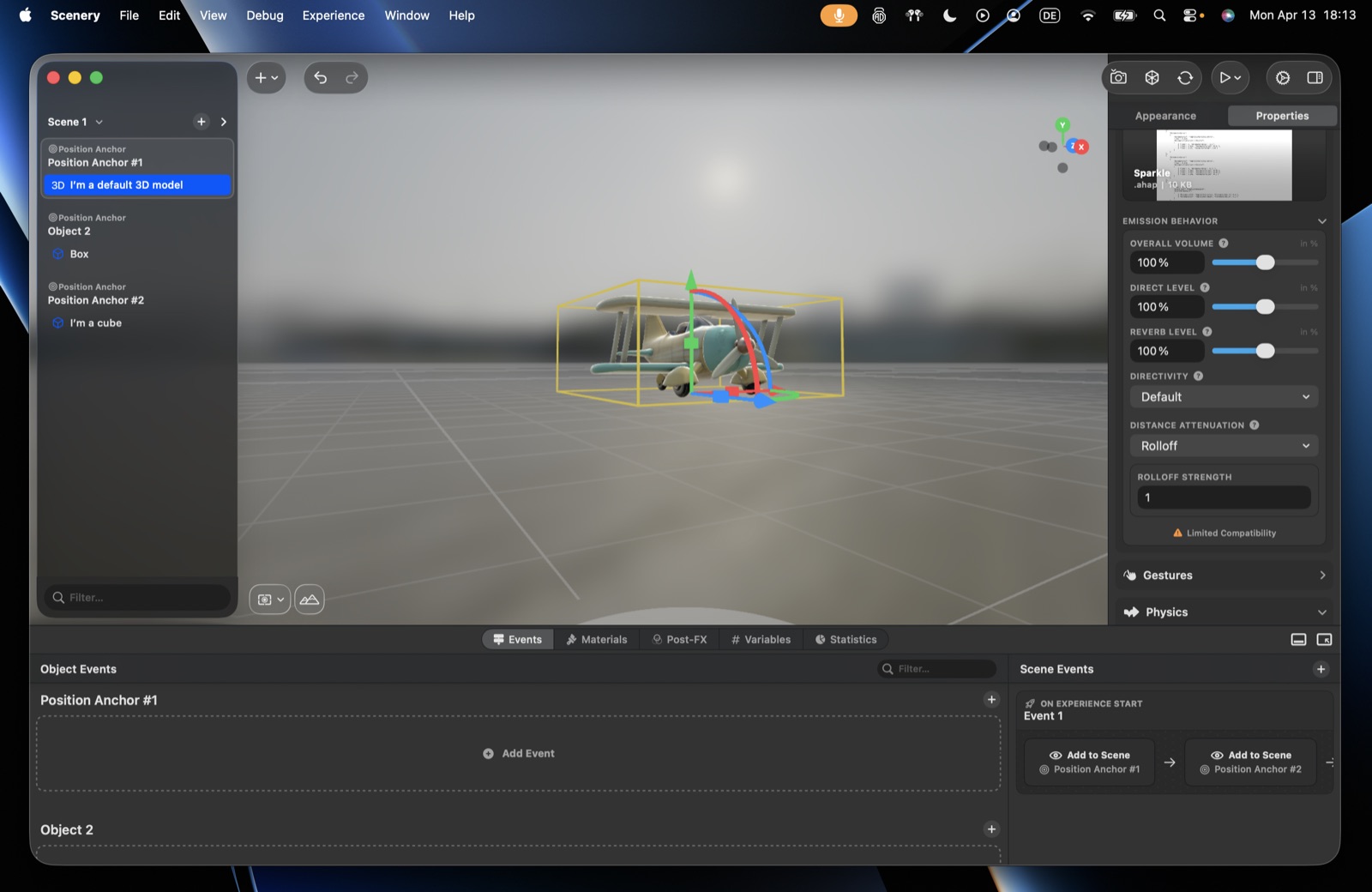 The advanced Emission Behavior controls.
The emission controls map to standard spatial-audio properties. They're available on iOS 18 / macOS 15 / visionOS, not on the web.
Gestures
Let users manipulate the object directly.
- Swipe to offset – swipe to nudge the object left/right (iOS and macOS).
- Drag, Rotate, Resize – each can be limited to specific axes (X/Y/Z) and given min/max constraints – e.g. lock to one axis with a range to make a 3D slider, or cap resize so the object can't be made too large.
- On Release (Advanced Settings) – what the object does when the user lets go:
- Stay in Place – it stays where it was let go. This is the default.
- Reset to Start – it animates back to where the gesture started. Good for "inspect but keep things tidy" (e.g. a product on a pedestal).
- Keep Momentum – it carries the motion the gesture gave it, so a flick throws it and a slow release lets it drift. Needs a physics body set to dynamic (see Physics below). Two extra sliders appear: Throw Strength scales how much of the flick's speed carries over, Spin Strength the same for its spin.
- Transform target (advanced) – the gesture can drive another object instead of the one being touched.
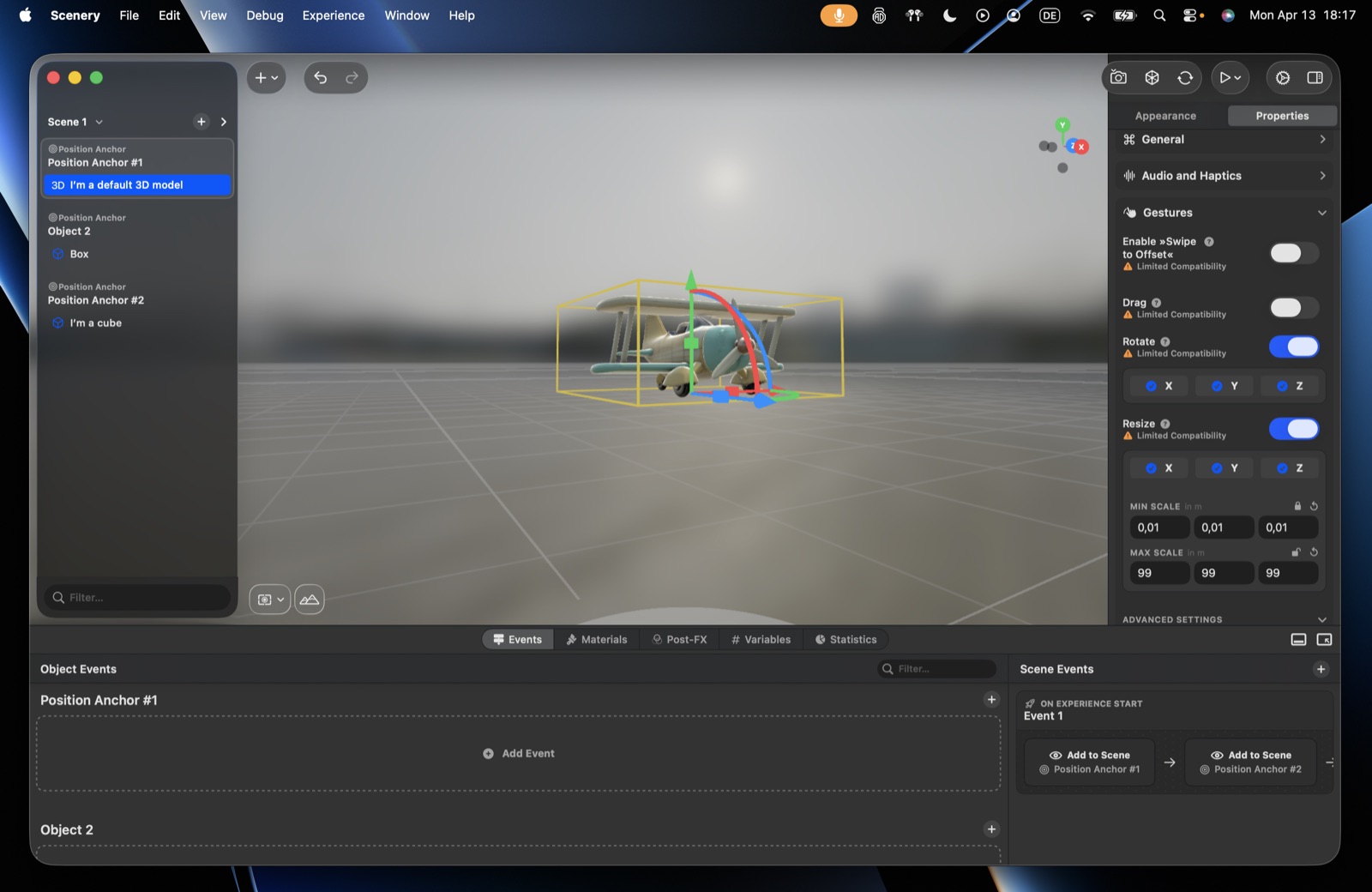 The Gestures section, with per-axis Drag, Rotate, and Resize limits.
Gestures adapt to the device
Drag, Rotate, and Resize work across iPhone, iPad, Mac, and Apple Vision Pro – the input adapts to each. On a touch screen you drag an object with one finger (two fingers moves it up and down), rotate it around the upright axis, and pinch to resize. On Apple Vision Pro the same gestures work directly in 3D space. The per-axis limits and min/max scale you set apply everywhere.
Physics
Give the object a physics body so it can collide, fall, and be pushed. (Physics also needs scene-level setup – see Physics actions.)
- Mode:
- Static – doesn't move; other objects collide with it (floors, walls, surfaces to land on).
- Dynamic – moves and responds to gravity, impulses, and collisions.
- Kinematic – moved by you (script/animation) and affects other bodies, but isn't pushed around by them.
- Collision shape – Box, Sphere, or Convex (match it to the object's form).
- Material – default, or custom friction (how much the surface resists sliding – static friction to start moving, dynamic friction while already moving) and restitution (bounciness: 0 lands with a thud, higher values bounce more).
- Mass – default, or a custom mass per object (heavier objects are harder to push and fall the same but resist impulses more).
- Dynamic body options – whether it reacts to gravity, plus linear and angular damping (how quickly its movement and spin slow on their own, like drag – raise them to settle sooner).
- Translation lock / Rotation lock – constrain movement or rotation to specific axes.
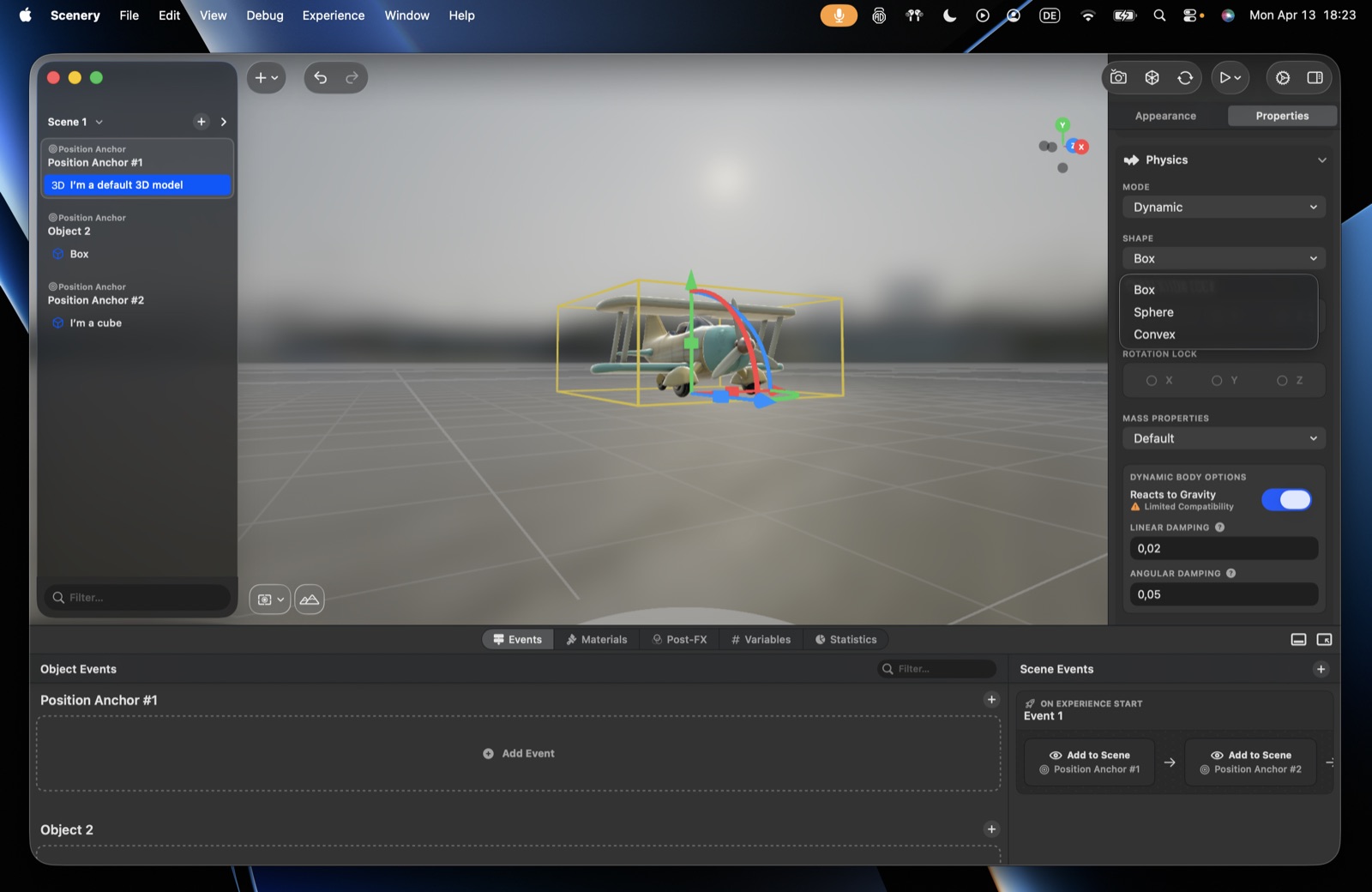 Physics – Mode and the Collision Shape menu.
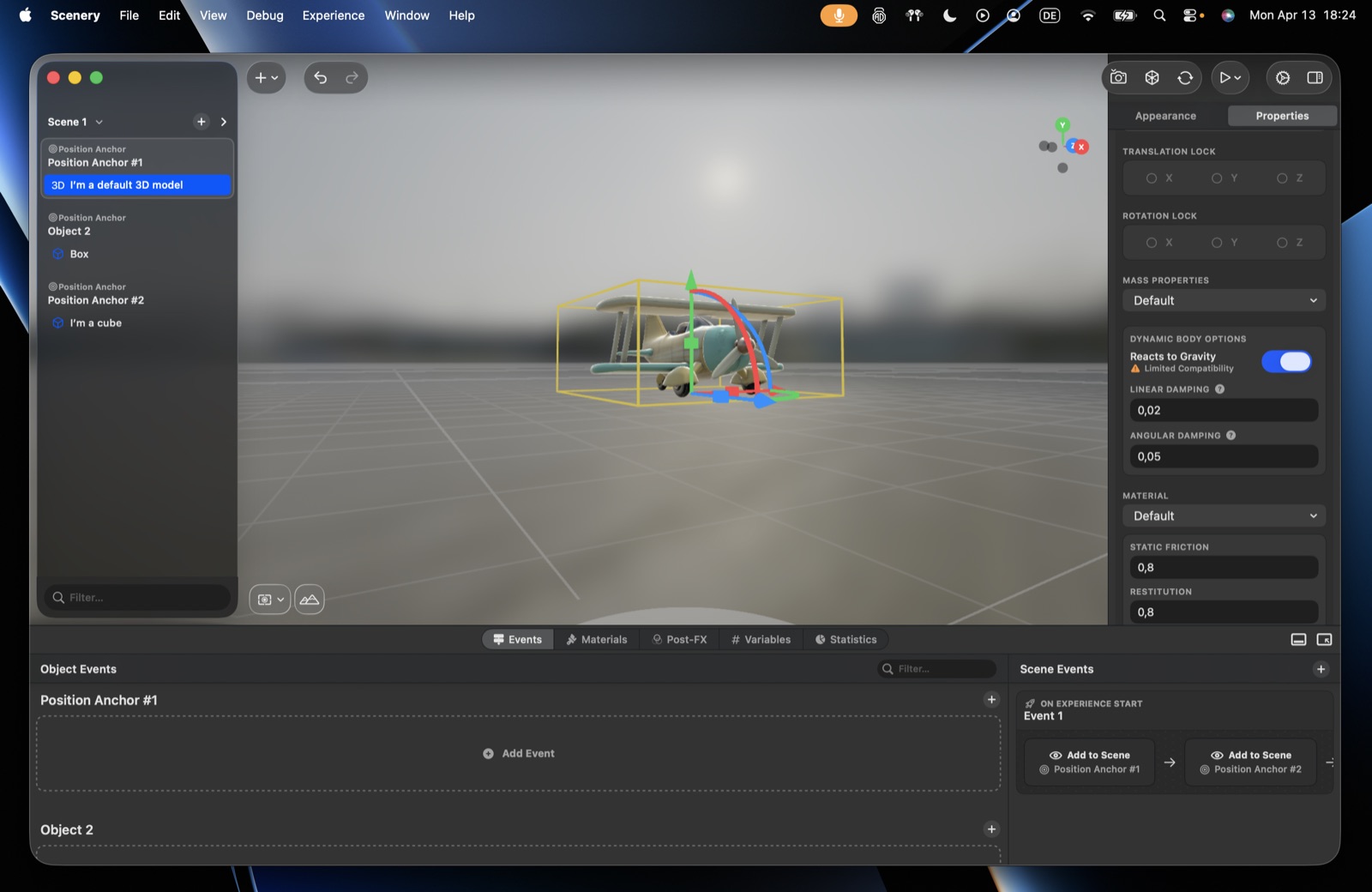 Physics – Translation/Rotation locks, Mass, Dynamic Body options, and Material.
Starting-point values
Rough starting points – tune to taste by previewing:
| Feel | Restitution (bounce) | Friction |
|---|---|---|
| Heavy, no bounce (clay, a metal thud) | 0 | 0.6 – 1.0 |
| Wood or plastic | 0.2 – 0.4 | 0.4 – 0.6 |
| Rubber ball | 0.6 – 0.8 | 0.8 – 1.0 |
| Ice or slippery | 0 – 0.2 | 0 – 0.1 |
Damping: keep linear and angular damping low (around 0 – 0.1) for free, lively motion; raise them (around 0.3 – 0.8) to make objects settle and stop quickly, as if moving through something thicker than air.
Modes, shapes, locks, friction, restitution, mass, damping, and starting-point values are explained from standard rigid-body physics.