
Appearance
Audio & Haptics
Actions for sound and touch. (For how actions are added and ordered, see Actions.)
Two kinds of audio: Ambient vs. Play Audio
Scenery gives you two distinct tools for sound, each suited to a different job:
- Ambient audio (Set / Toggle Ambient Audio) is the scene-wide background bed – music, or a narrator that guides the whole experience. It lives independently of any object.
- Play Audio plays a sound emitted from a specific object (e.g. a plane's engine), tied to that object.
Choose by what the sound is: background music or narration → Ambient audio; a sound that belongs to an object → Play Audio.
Set Ambient Audio
Sets the background audio bed for the scene.
Options
- Audio – the audio file to play.
- Play instantly – start immediately, or wait to be started.
- Fade duration – fade-in length.
- Volume – overall level, handy for balancing against other sounds without leaving the editor.
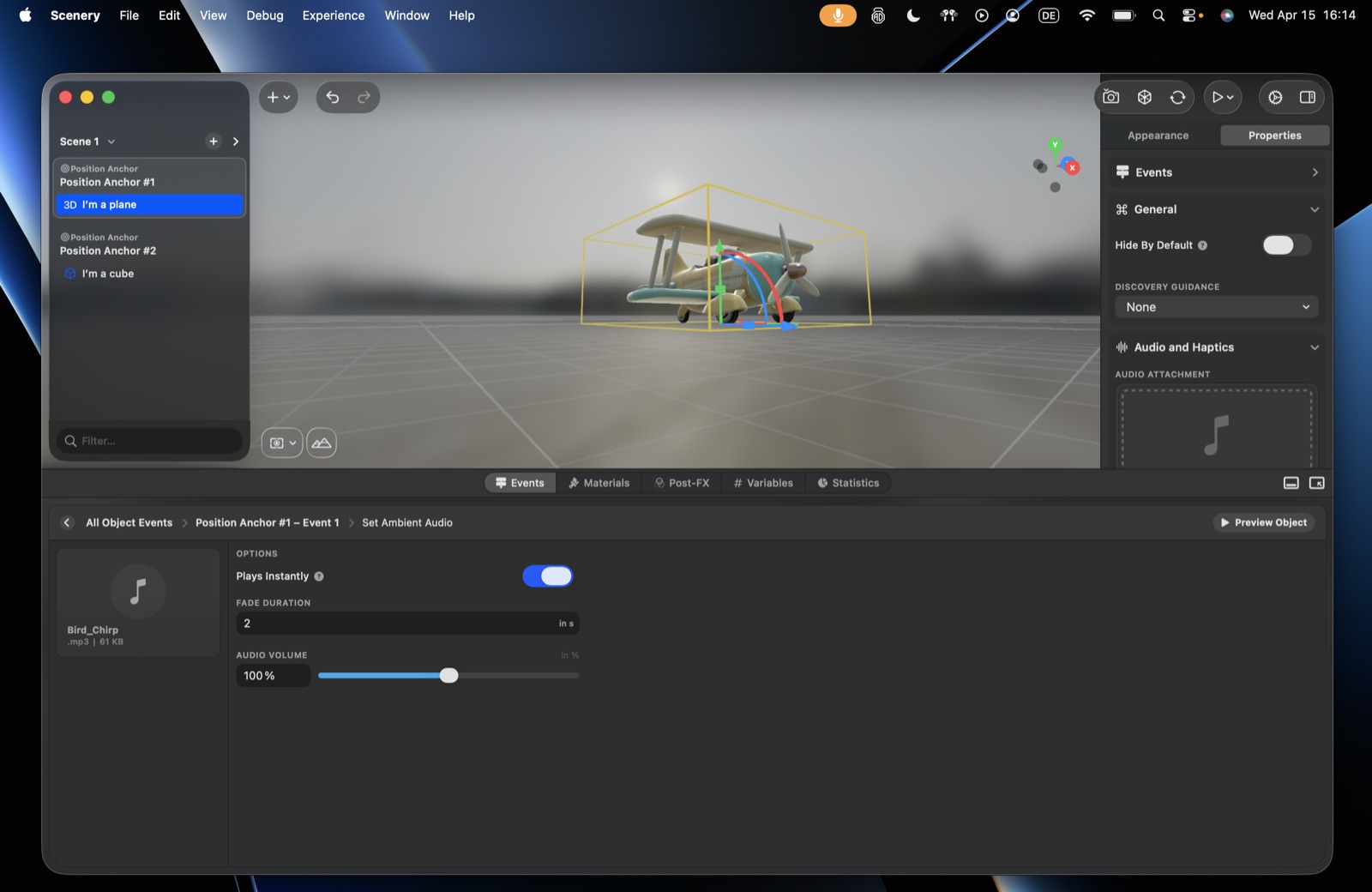 The Set Ambient Audio action.
Toggle Ambient Audio
Turns the ambient bed on or off – set to Automatically, Enable playback, or Disable playback.
Duck the music near an object
Pair this with a Distance Field trigger: disable the ambient bed when the user comes close to a talking object, and enable it again when they leave.
Play Audio
Plays a sound emitted from an object.
Options
- Audio – upload a file, or pick an Integrated Asset (built-in presets for AR scavenger-hunt moments: checkpoint reached, object collected/found, modifier unlocked).
- Audio mode – how the sound sits in space:
- Spatial – fully 3D: the sound comes from the object's location, pans as the listener turns, and grows louder as they move closer. The usual choice for an object's sound. Use a mono source so it spatializes cleanly.
- Non-spatial – flat: it plays the same wherever the listener stands or faces, like a 2D sound effect. (Still attached to the object, unlike the scene-wide Set Ambient Audio.)
- Ambient – in between: it pans left and right with the listener's facing direction, but doesn't get louder or quieter with distance.
- Volume – level.
- Loop – repeat or play once.
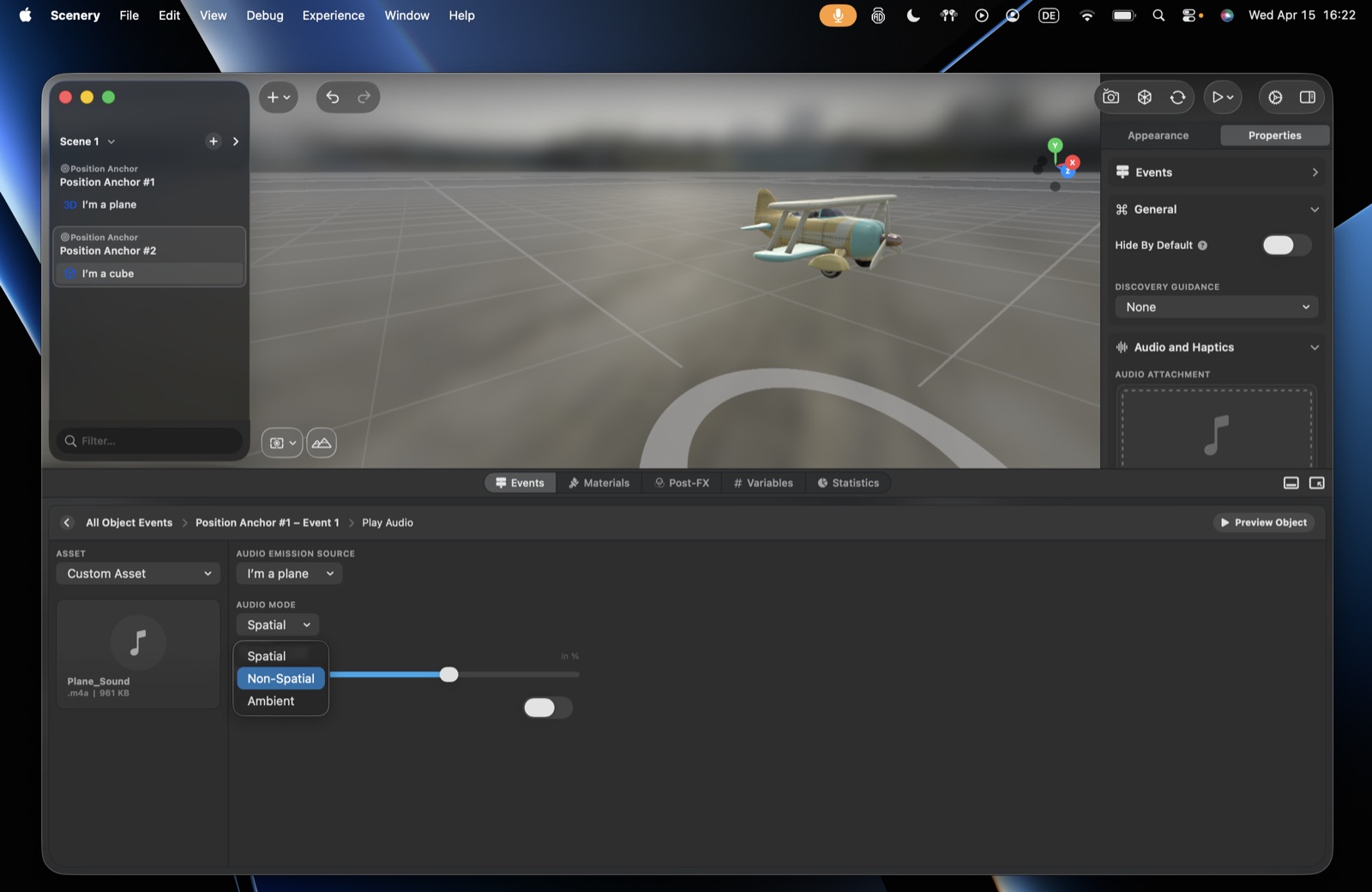 The Play Audio action and its Audio Mode menu.
Spatial = directional panning plus distance attenuation; Ambient = directional panning only; Non-spatial = no spatialization.
Object sounds can also live on the object
If a sound is really a permanent sound effect for a model, you can attach it in the model's Properties (audio & haptics) instead of via an action, with the same mode and volume controls.
Fade Audio
Fades an object's audio up or down to a target level.
Options
- Target Object, Volume (0–200), Fade duration.
Seek Audio
Jumps an object's audio to a specific timestamp (hours / minutes / seconds) – useful for jumping between sections of one longer file based on what the user does.
Stop Audio
Stops the audio on an object, with an optional fade duration.
Emit Haptic Feedback
Plays a haptic (a touch / vibration pattern) – a small detail that makes interactions feel more tangible.
Options
- Custom asset – upload an AHAP haptic file (created in external tooling; also covered under a model's audio & haptics properties).
- Integrated asset – built-in patterns: impact Light, Medium, Heavy, Soft, Rigid, and a selection of others.
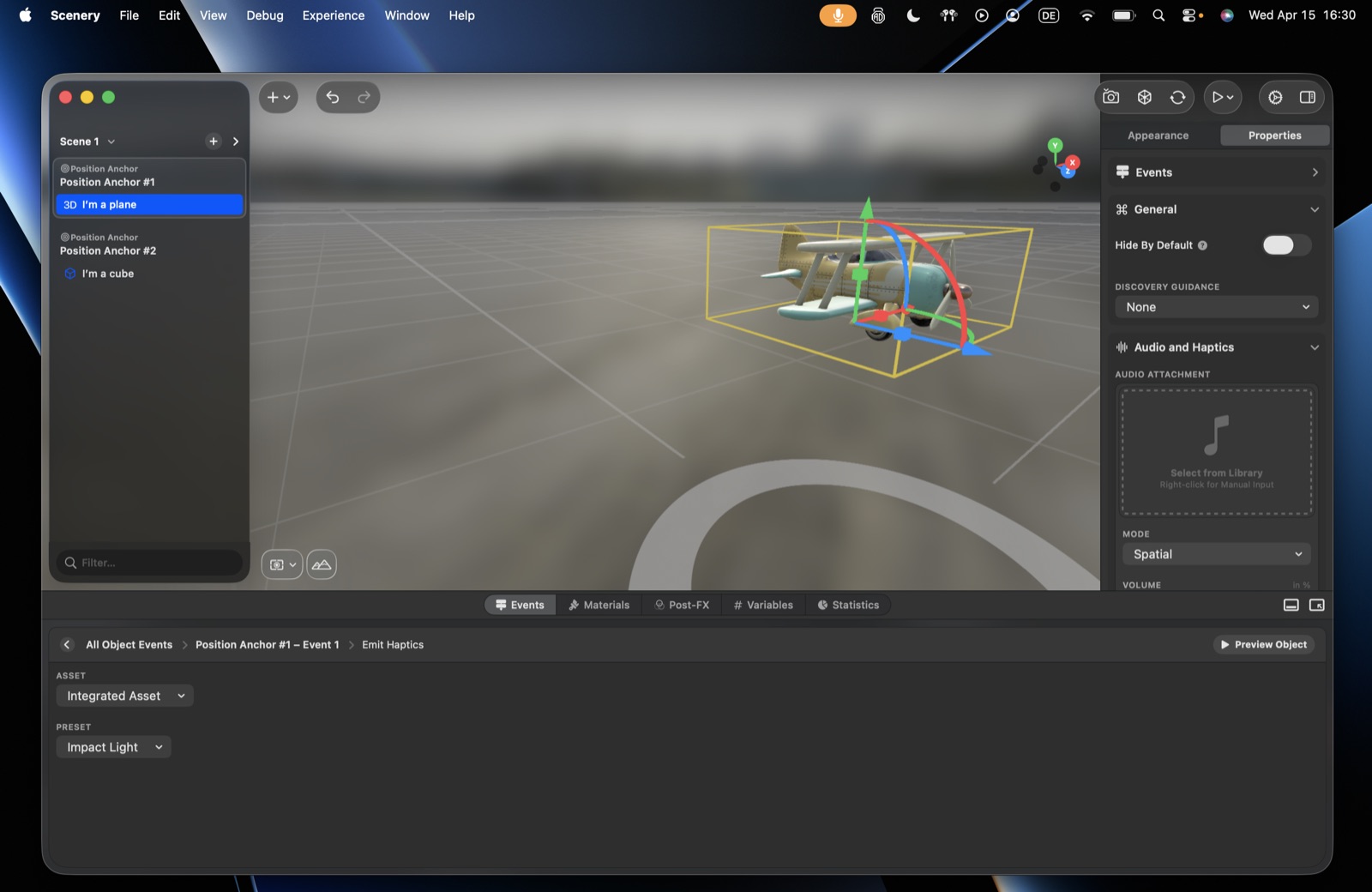 The Emit Haptic Feedback action.
Set Ambient Audio is scene-wide and object-independent; Play Audio is object-emitted with a spatial / non-spatial / ambient input mode.