
Appearance
Experience Settings
Settings for the whole experience (not a single scene). Open them with the Settings button (top-right) when nothing is selected.
Information & discovery
- Name – shows wherever the experience is shared, inside Scenery and out. Make it enticing.
- Description – a concise hook (max 120 characters).
- Tags – up to 5; they appear on the preview and help discovery.
- Category – a primary and an optional secondary category.
- Thumbnail – upload an image, or use the Snapshot button to capture the scene (it uploads to the asset library and sets it as the thumbnail). The thumbnail + name + description are the first thing people see.
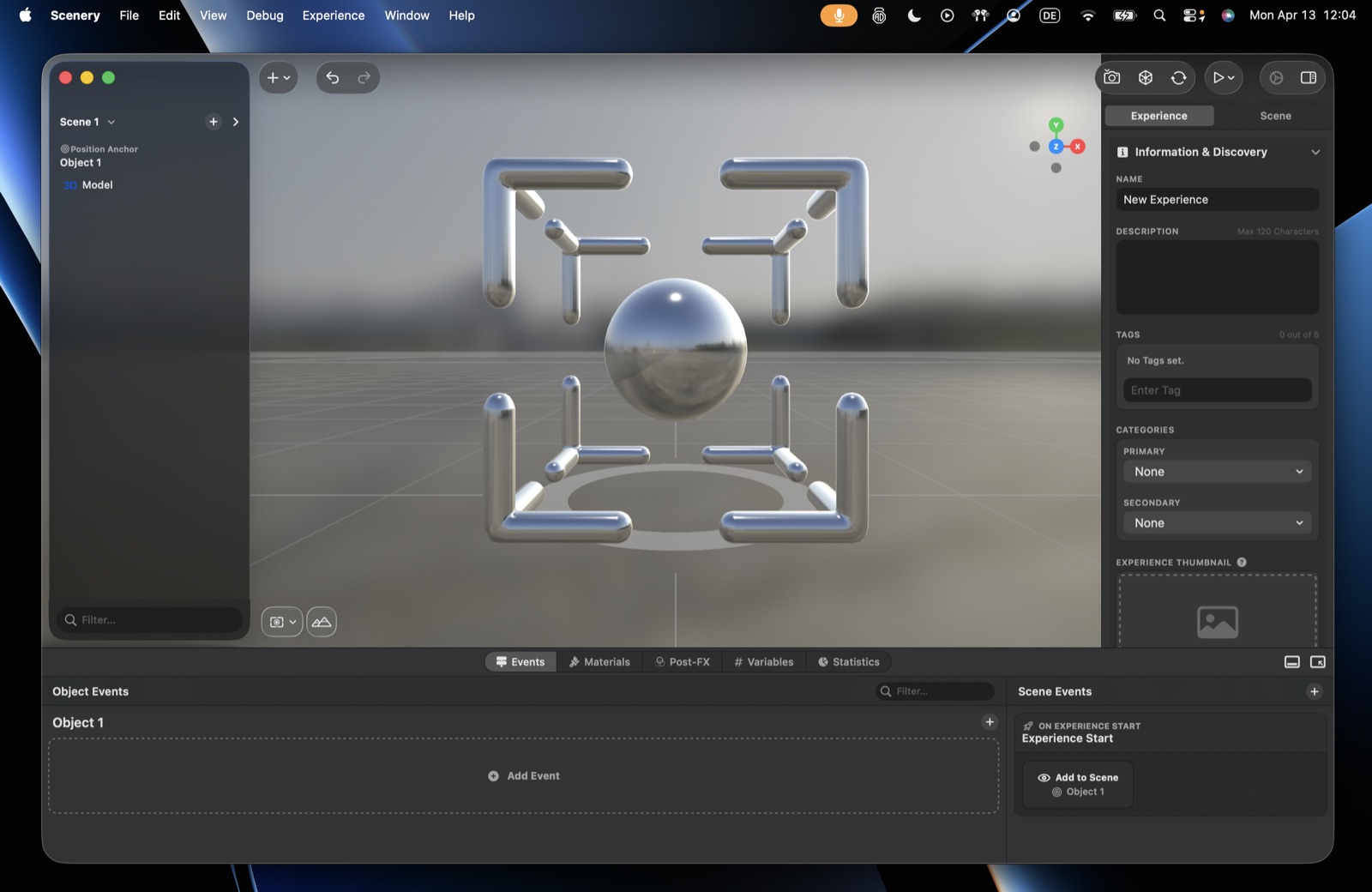 The Information & Discovery settings.
- Availability:
- Public – anyone with the link can open it, and it may appear in the Creators tab. Only make public what's ready to share.
- Private – only you can open it, even with the link. For confidential / in-progress work.
- Link – anyone with the link can open it (and it can be featured), but it won't show on your public profile. Good for team / client review.
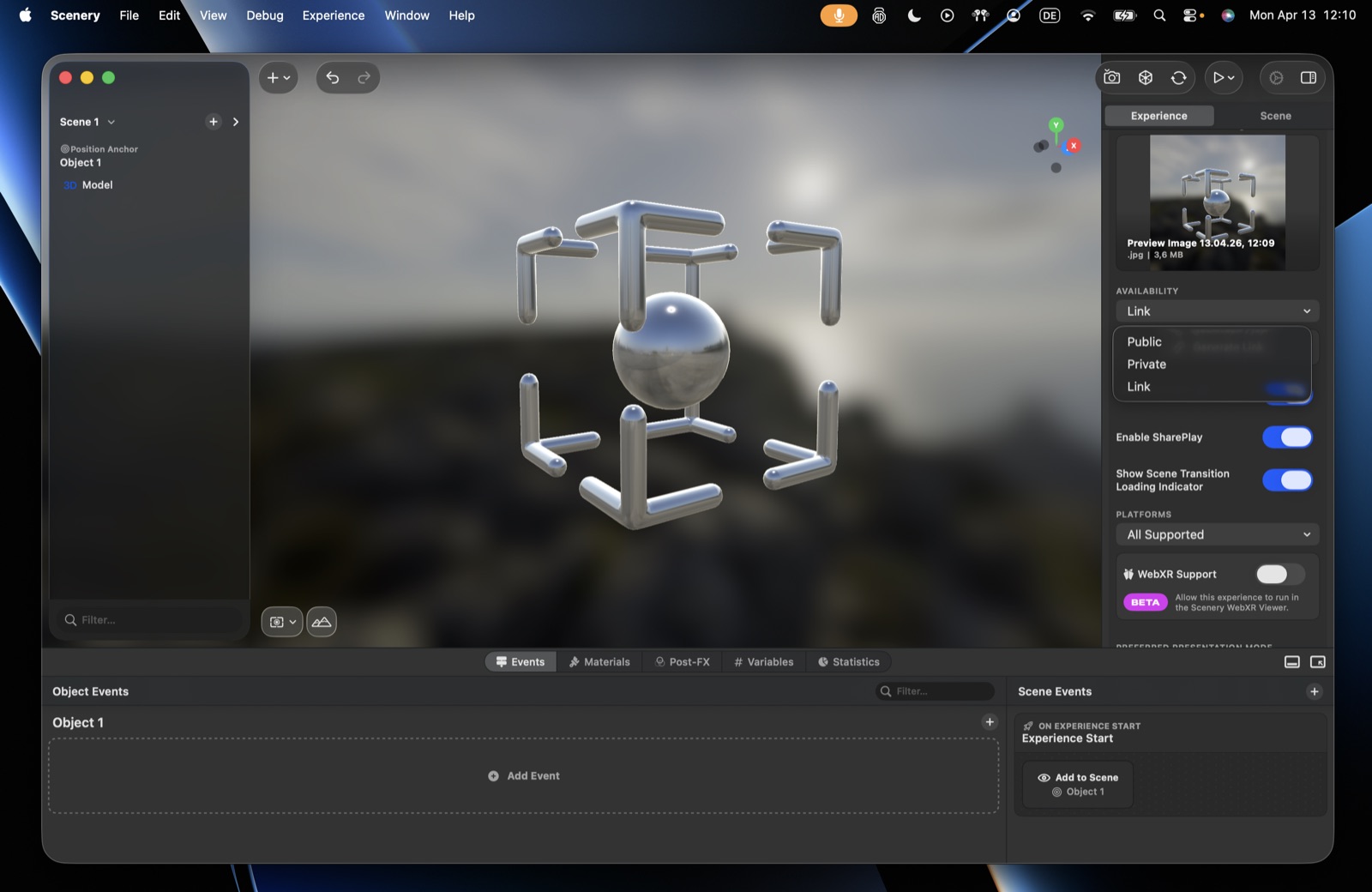 The Availability menu – Public, Private, or Link.
Sharing & delivery
- Generate link – the gateway to your experience. On paid plans the link is an App Clip (instant access with no app install) – open it from a QR code or NFC tag for the smoothest entry (it skips the browser). Without a QR/NFC tag, a browser link shows an "open App Clip" prompt (Safari, non-private browsing only) – which is why a QR code is recommended. (Free plan can't share App Clips; Agency/Enterprise can customize the App Clip card.)
- Allow featuring – let other creators discover it in Scenery. Turn off for NDA work.
- Enable SharePlay – share the experience in a SharePlay session (best on Vision Pro; also iOS/iPadOS).
- Scene transition loading indicator – the spinner shown when moving between scenes; disable it for seamless, immersion-preserving transitions.
- Update link metadata – regenerates the shareable link and refreshes its preview card (the name, thumbnail, and description shown when the link is opened or shared). The button reads Generate link before a link exists, and Update link metadata afterwards – use it to refresh the preview after you change the experience's name, thumbnail, or description.
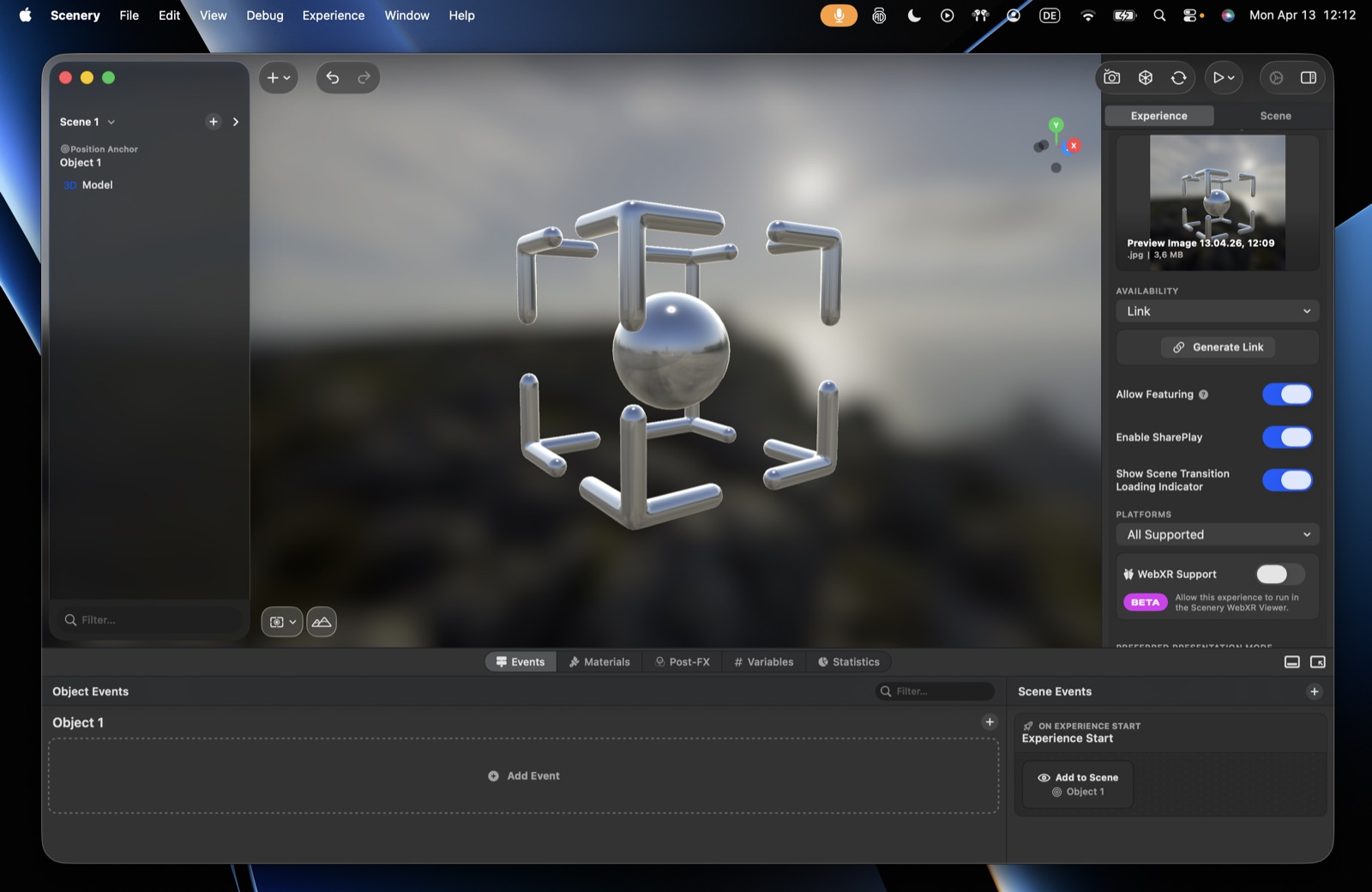 Sharing & Delivery – Generate Link, featuring, SharePlay, platforms, and WebXR.
Platforms & WebXR
- Platforms – all supported by default; restrict to selected platforms if needed.
- Minimum OS version – unrestricted by default. Requiring a version tells anyone on an older system that the experience is unavailable, rather than letting them open it and find parts of it missing. One setting covers iOS, macOS and visionOS, since Apple's version numbers are aligned. A platform you enable afterwards inherits the same requirement. Some features need a newer system than others: a scene using them says so beside this setting and offers to set the requirement for you.
- WebXR support (beta, opt-in) – also run the experience in a browser (Android and other devices) via the WebXR viewer. A subset of features carries over (native-only features don't). It's available to every creator – just turn on the WebXR support toggle to opt in. (Still in beta, so expect rough edges.)
Presentation mode
- Immersive (default) – a fully immersive experience around the user.
- Volume (Apple Vision Pro) – a bounded volume that coexists with other windows/volumes (like a spatial widget). Options: allow resize, allow rotation, show base plate, adjust for viewport, content scale factor (shrink the whole scene into a diorama), and content clipping margins (let content spill a set distance beyond the volume before it's clipped – e.g. a waterfall falling just past the edge).
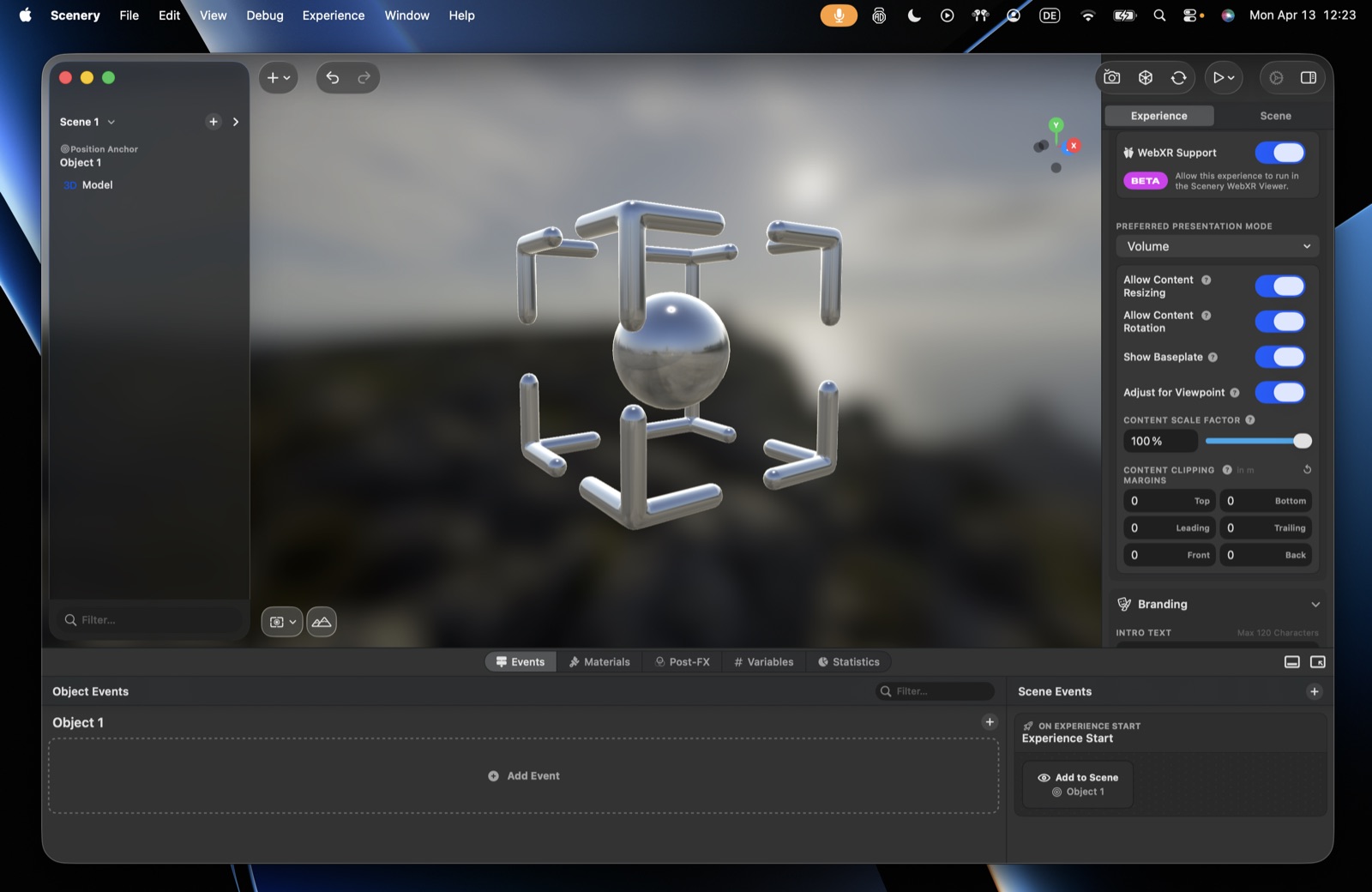 Volume presentation mode options.
Branding
(Agency / Enterprise only.)
- Intro text (max 120 chars) – a short intro card shown when the experience opens.
- Tint – a custom colour applied to UI like buttons and the pause menu.
- Header image – shown on the intro screen above the intro text.
- Logo – watermarks the photos and videos users capture from within the experience (every experience ships with built-in photo/video capture + sharing, even in an App Clip), and appears on the pause screen.
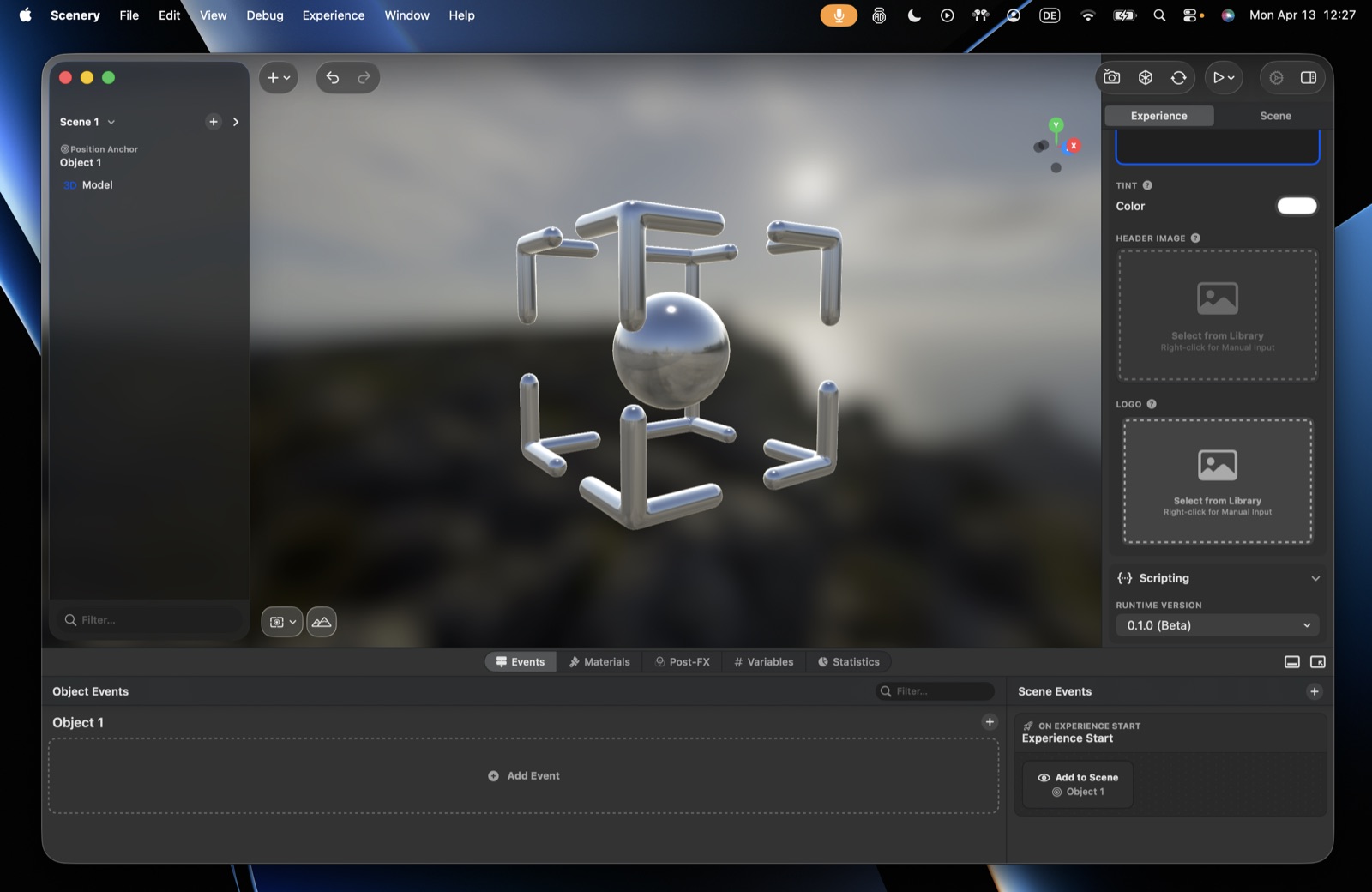 The Branding controls.
Scripting
- Runtime version – the scripting runtime the experience uses (currently one version).