
Appearance
Environments & Lighting
The background & lighting button (in the viewport) controls how your scene is lit and what sits behind it. These are creation-time controls; some pair with Scene settings → Lighting & environment.
Lighting
How virtual content is lit:
- Custom (default) – on capable devices, the device captures the real-world lighting (an HDR environment light map) and applies it to objects with PBR (physically based) materials. Content then feels grounded in the space, and looks different depending on where and when the experience is opened. Great for realism.
- Presets – pick a fixed lighting environment (indoor, gallery, workshop, urban, street, plaza, …) when you want full control over the look regardless of the user's surroundings (e.g. an art-led experience).
Also here: a floor grid toggle (a creation aid) and lighting exposure (brighten / darken the whole scene).
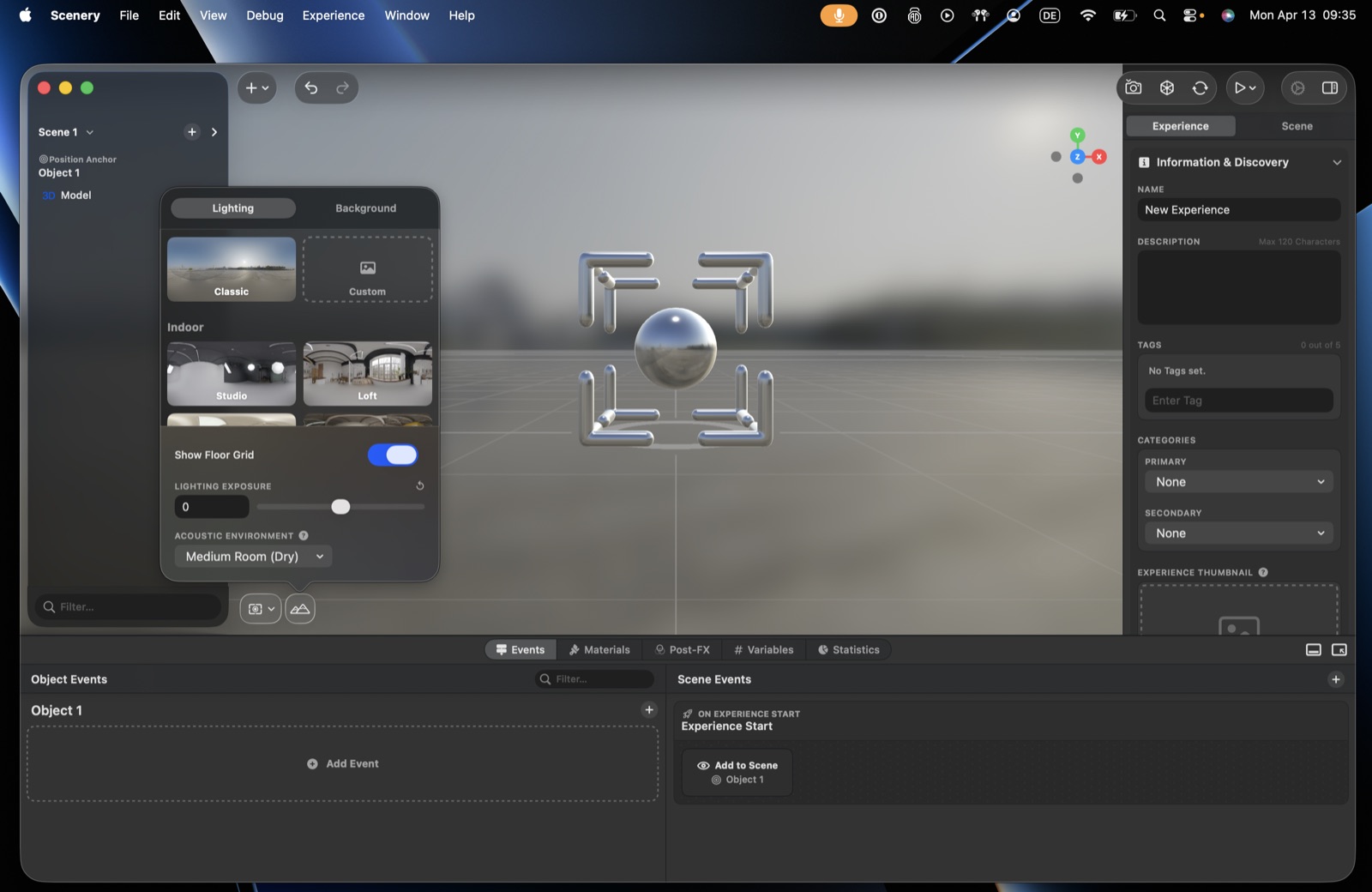 The Lighting panel.
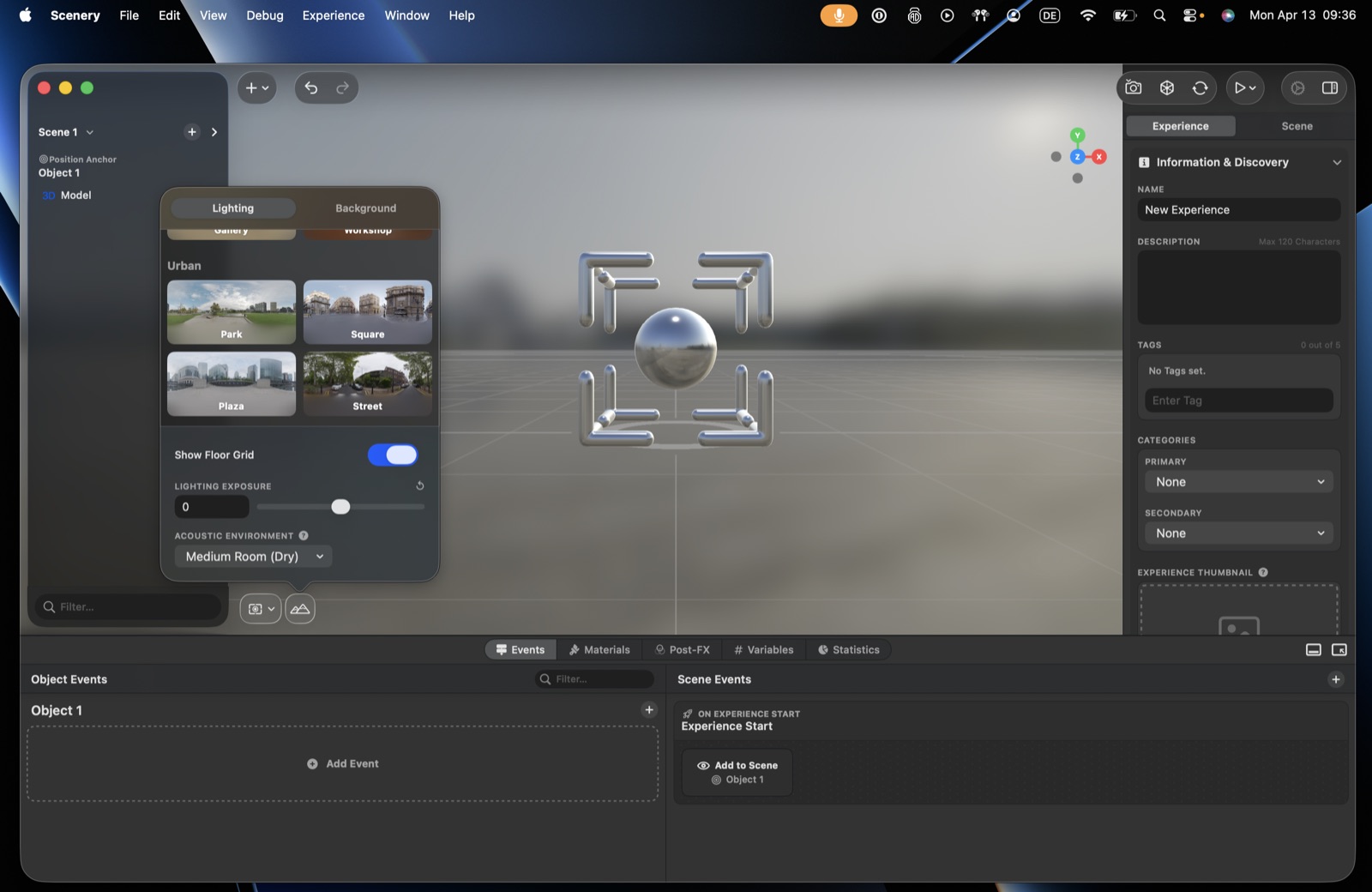 More lighting presets – the Urban set.
Background
By default the real camera feed shows behind your content. Set a background (a 360° image, from a preset or your own) to replace the camera feed – turning an AR-tracked scene into a more VR-like space the user can still walk around in.
To actually show a background, set the scene's immersion mode (Scene settings → Lighting & environment):
- Mixed (AR) – default; content over the real world.
- Progressive – on Apple Vision Pro, the user can dial the virtual environment in and out.
- Full VR – uses the background image as a full virtual environment (still with AR tracking, so the user can move around).
Environment texturing (same section) is on by default (use real-world lighting). Turn it off to rely on your chosen custom light map instead.
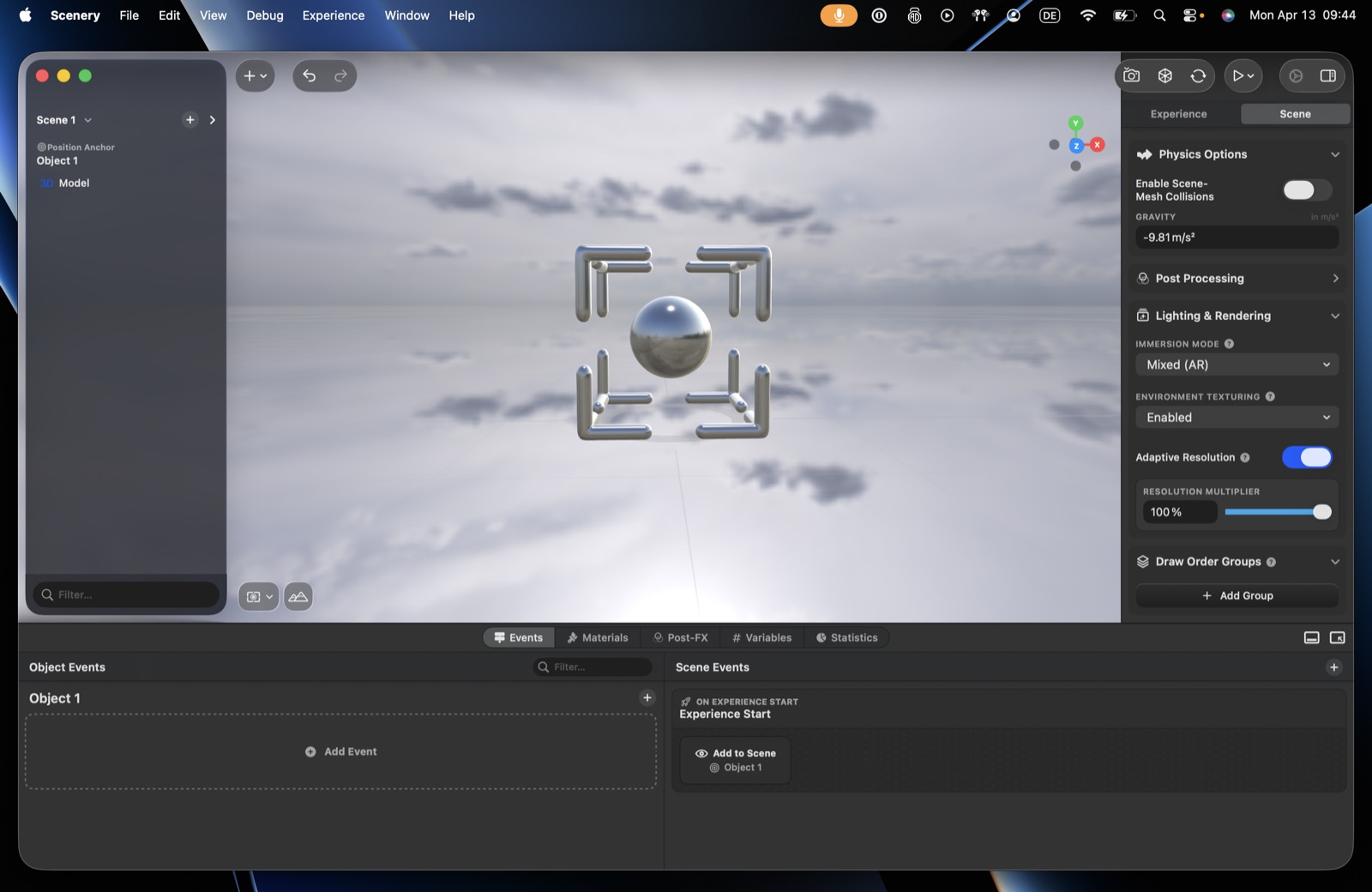 A background applied, with the Lighting & Rendering controls.
Acoustic environment
Sets the reverb used for spatial audio – Medium room (dry), Large room, Outside, Very large room, Concert hall, etc. Use the tooltips (the small markers next to options, found throughout the editor) for a description of each.
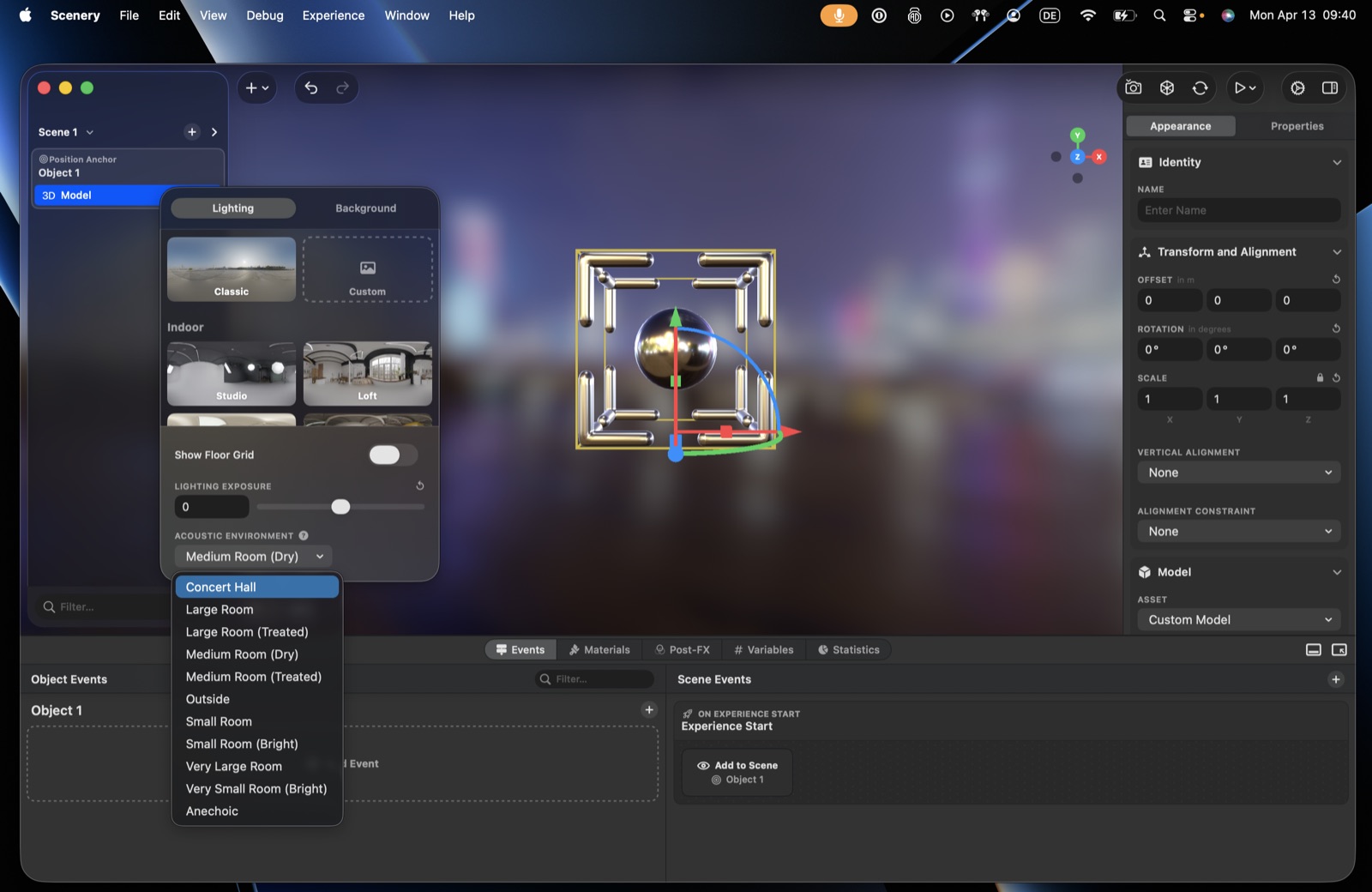 The Acoustic Environment menu.
Immersion mode (Mixed AR / Progressive / Full VR) and environment texturing match the editor's Lighting & Rendering controls.