
Appearance
Physics
Actions that push, spin, and reset objects under physics simulation. (For how actions are added, see Actions.)
Set up physics first
Physics needs a few things in place before these actions do anything:
- In Scene settings → Meshing, enable the floor mesh (so objects don't fall through the floor), and world meshing if objects should interact with the real environment (LiDAR devices only).
- In Scene settings → Physics, enable scene mesh collisions (so objects react to that mesh), and adjust gravity if needed.
- On each object, enable physics in its Properties, and pick the right collision shape (sphere, box, or convex).
Apply Impulse
Pushes an object with a one-off force.
Options
- Target Object.
- Impulse position – a fixed point, or the user interaction point.
- Reference space – the coordinate frame for the impulse: Local (the object's own orientation), World (absolute scene axes), or Point of View (relative to the camera).
- Impulse – the force along each axis (X, Y, Z), in newton-seconds.
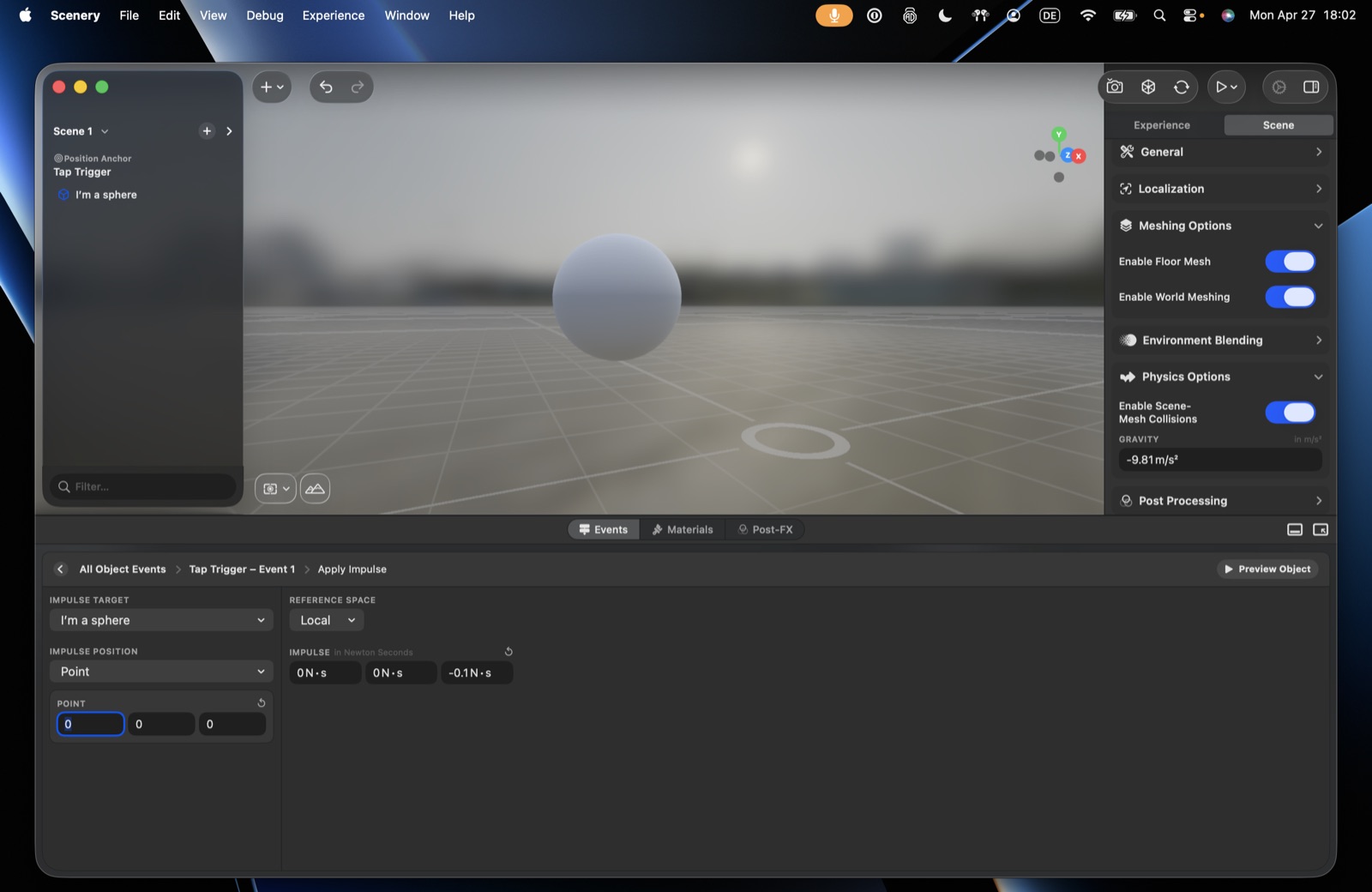 The Apply Impulse action.
Apply Angular Impulse
Like Apply Impulse, but rotational – makes the object spin. Same target, reference space, and per-axis impulse.
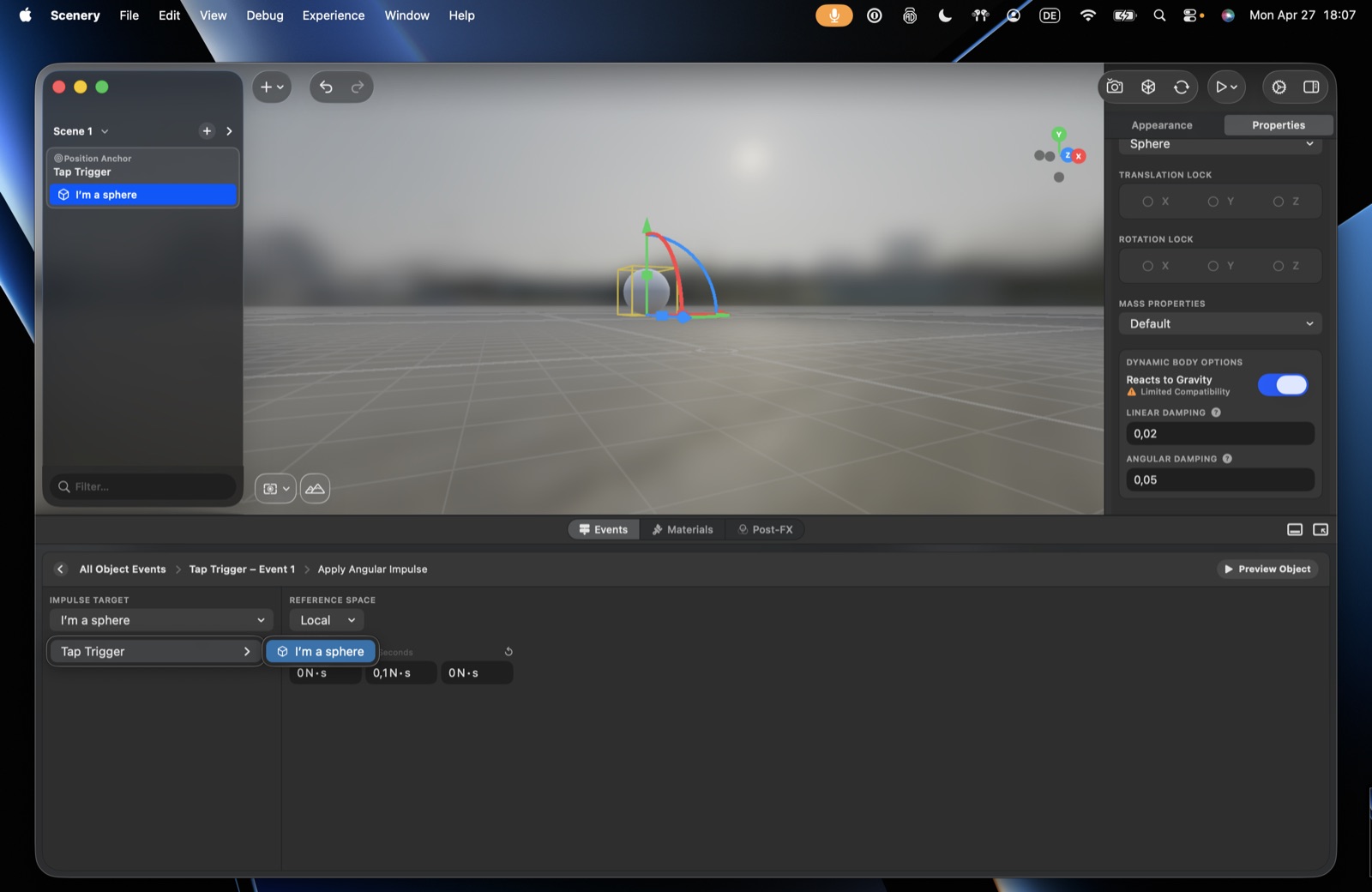 The Apply Angular Impulse action.
Reset Element Physics
Resets one object's physics state (position and motion).
Reset Scene Physics
Resets the physics state of the whole scene – handy for switching between physics "states" (e.g. normal gravity vs. moon gravity) on demand.
The body physics mechanics these actions drive are explained under Asset Properties → Physics.